Scenario:
How to display GL Account in the Transaction?
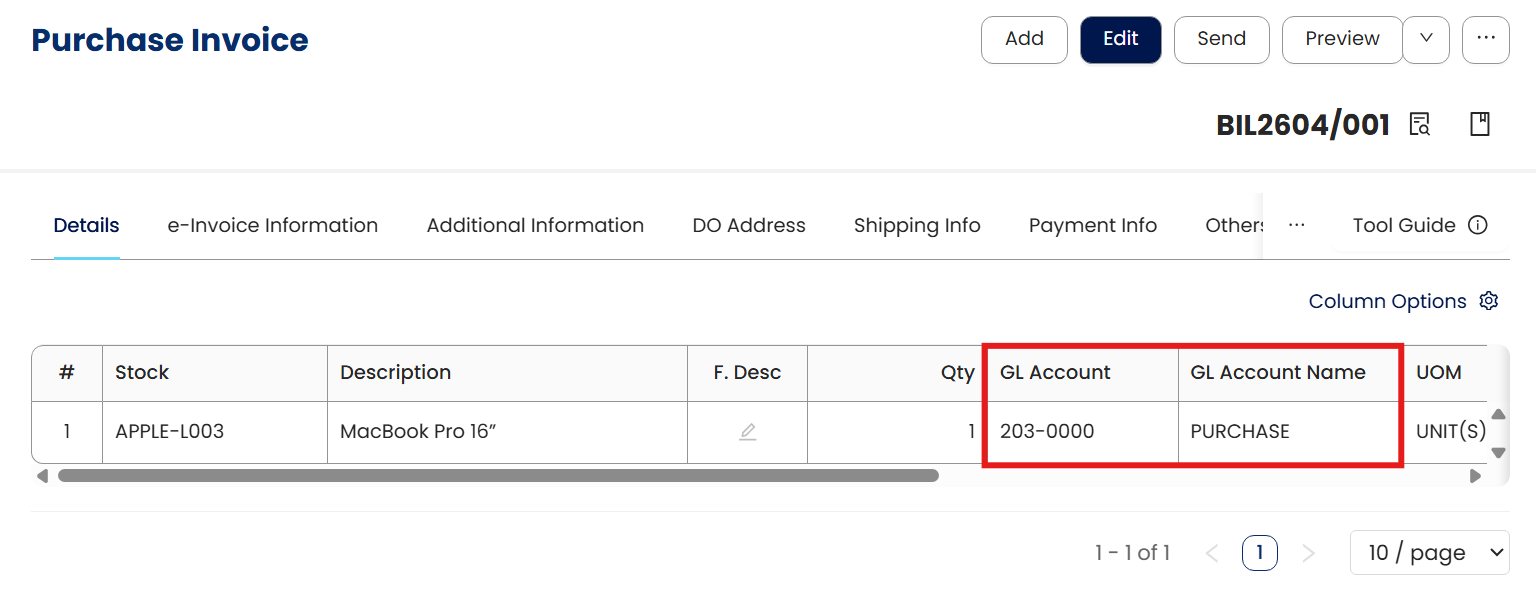
Solution:
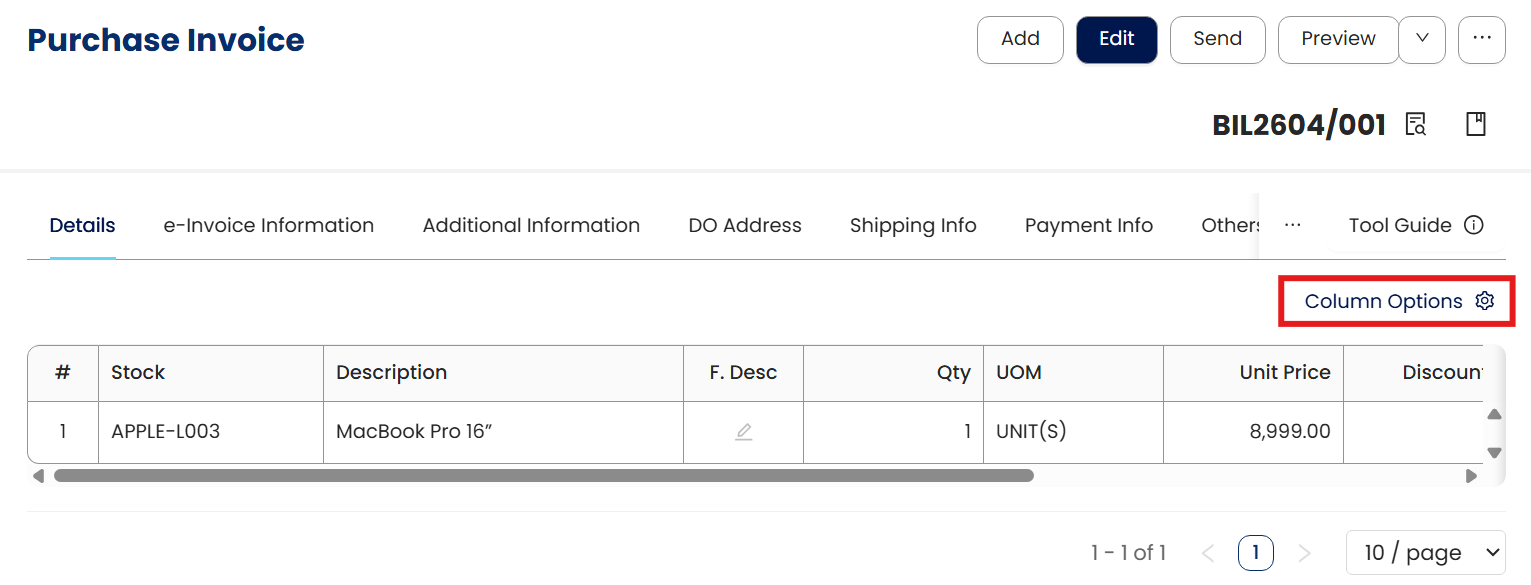
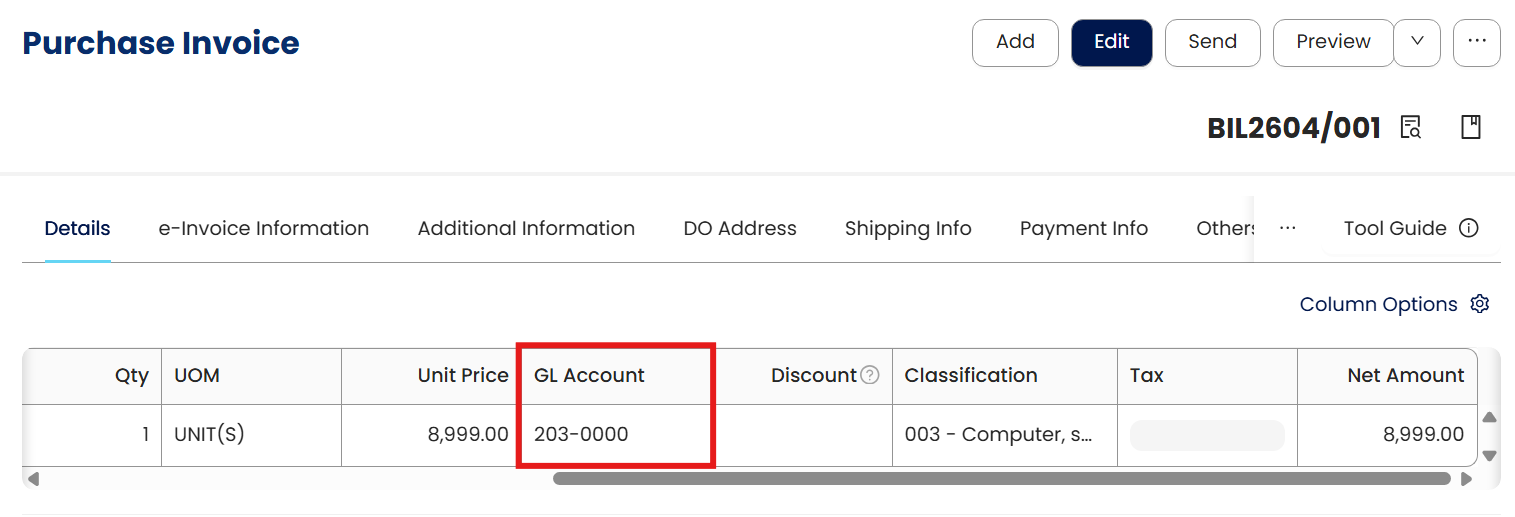
Select the transaction you would like to display GL Account codes. Example, Purchase Invoice Click on ‘Column Options’
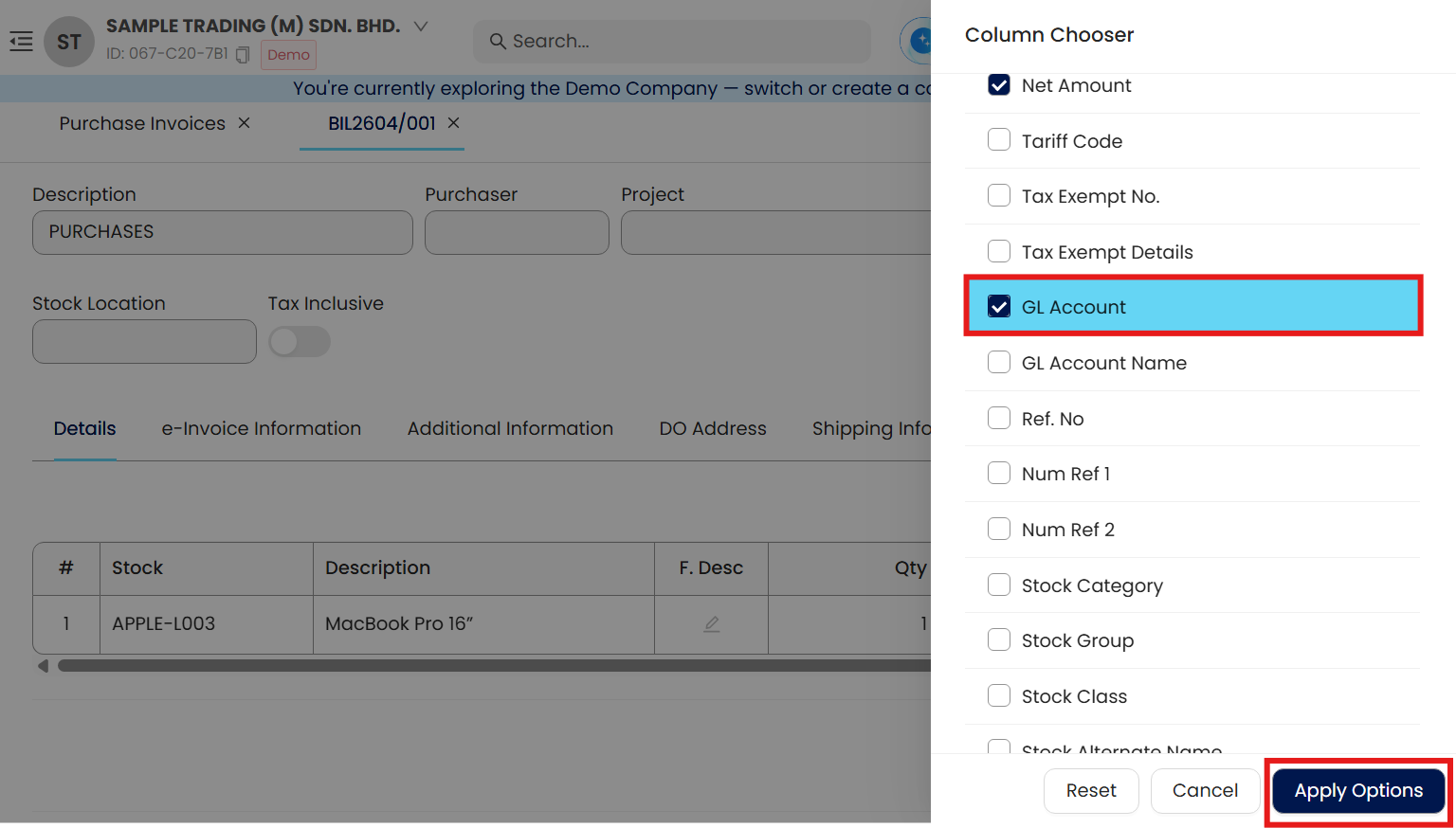
Tick ‘GL Account’ then Apply Options
System displays GL Account at the transaction, you can drag and move it to in front if you want
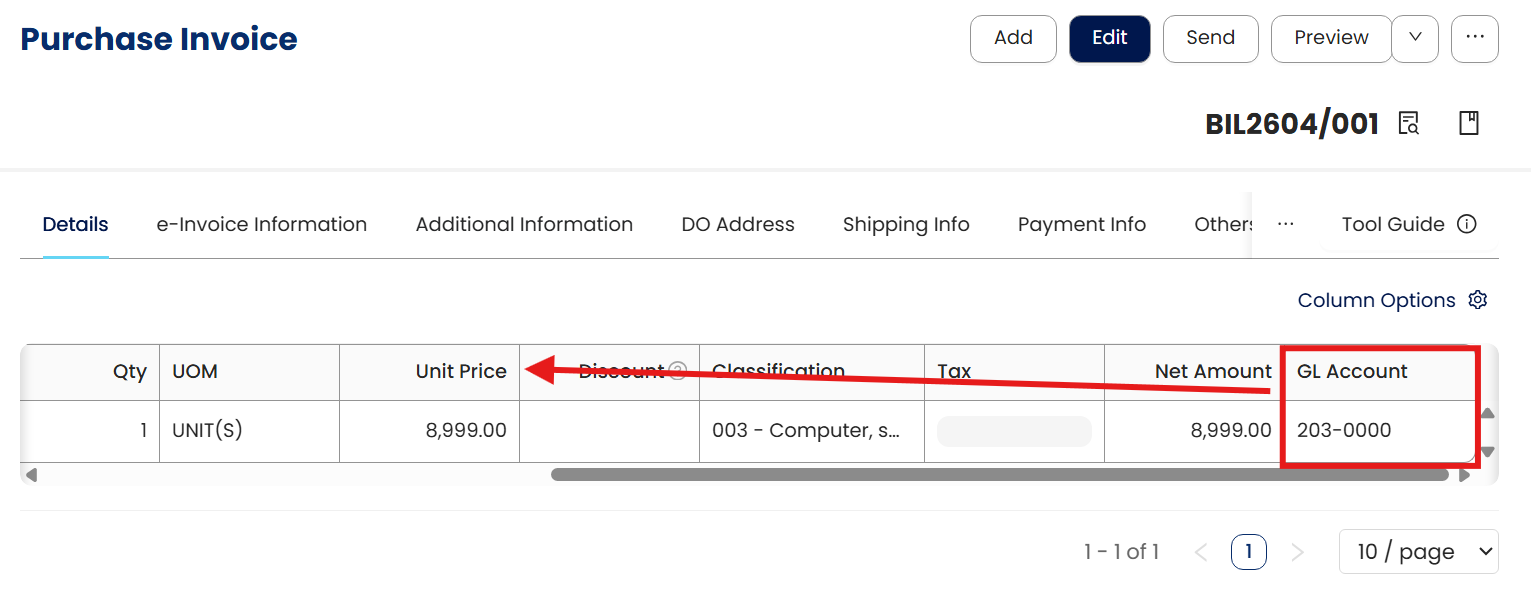
Then you can change the GL Account
Notes:
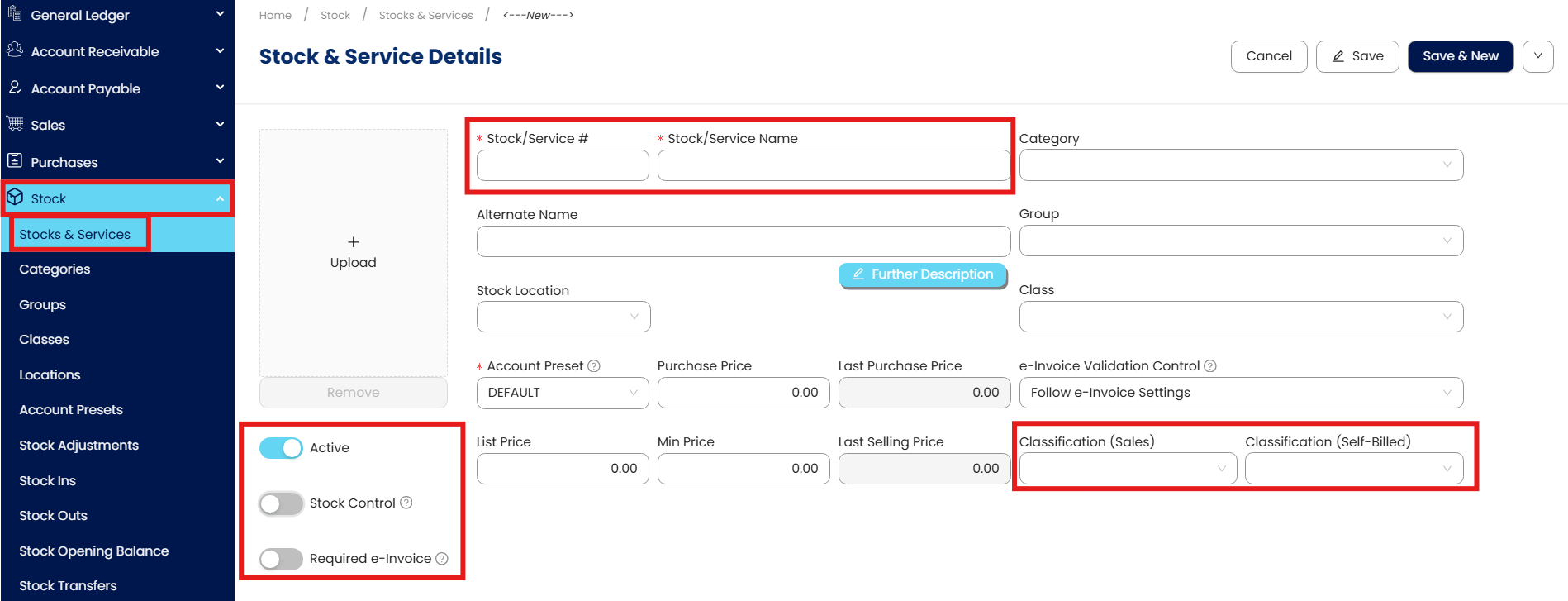
If your transaction does not involved Stock, you can create a Service Item in Stock maintenance.
Create Stock Code as MISC and Stock name as Miscellaneous. Disable ‘Stock Control’. Define Classification as 022 and 036
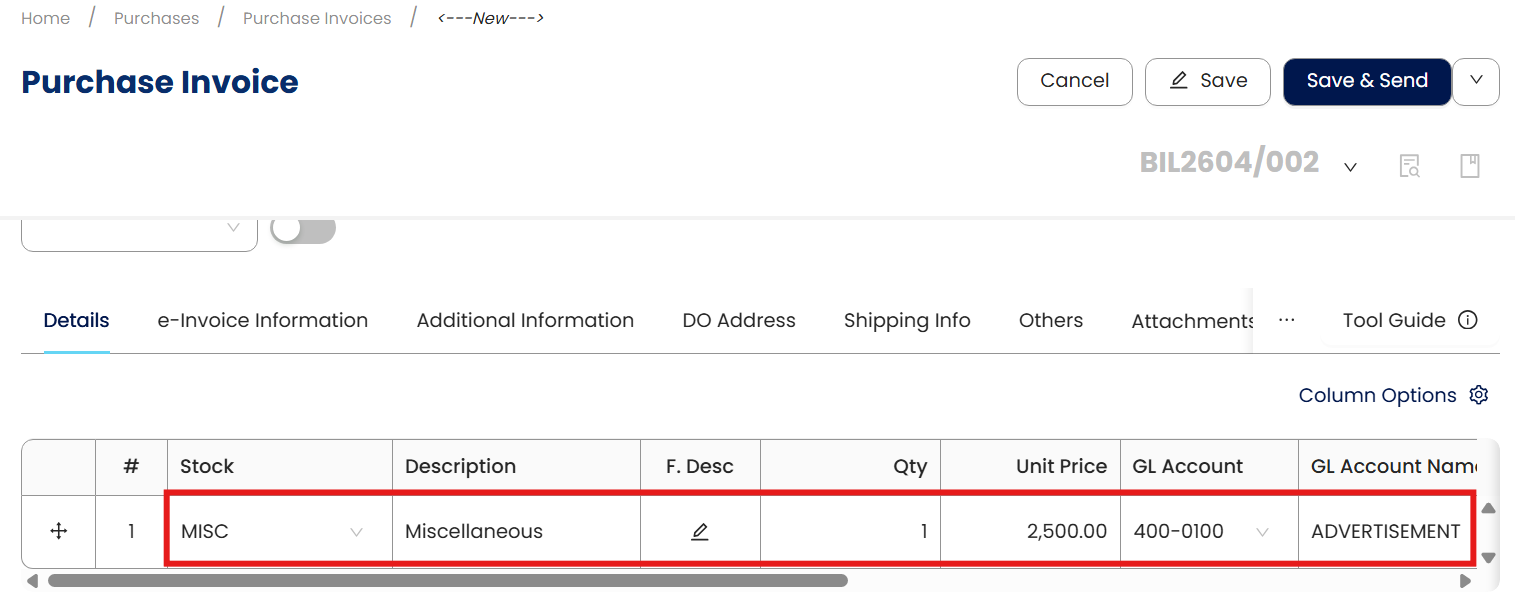
In the transaction, select MISC as the stock code, update the description, choose the correct GL account, enter the amount, and change the classification if required.
System Scope: QNE AI Cloud Accounting / N3 AI Accounting
Was this article helpful?
That’s Great!
Thank you for your feedback
Sorry! We couldn't be helpful
Thank you for your feedback
Feedback sent
We appreciate your effort and will try to fix the article
