Overview:
The latest enhancement in N3 AI Accounting (formerly QNE AI Cloud Accounting) is the Import Sales Transaction for Consolidated E-Invoice feature. This feature allows users to import sales transactions that were not created within the system (e.g., from external sources such as the user's own POS system) for the purpose of submitting them as Consolidated E-Invoices.
Scenario:
Submitting a Consolidated E-Invoice from imported transactions.
Solution:
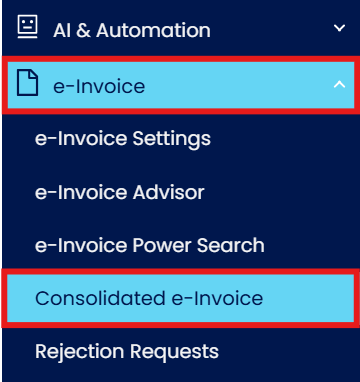
From the Navigation screen, go to e-Invoice, then select Consolidated e-Invoice.
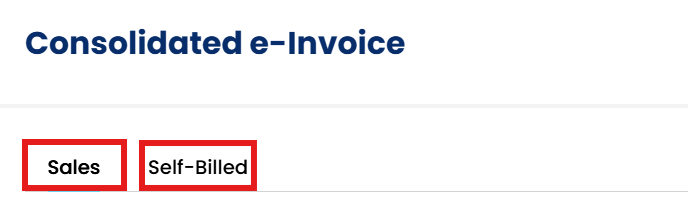
Choose the transaction type for consolidation (Sales or Self-Billed) and click Add.
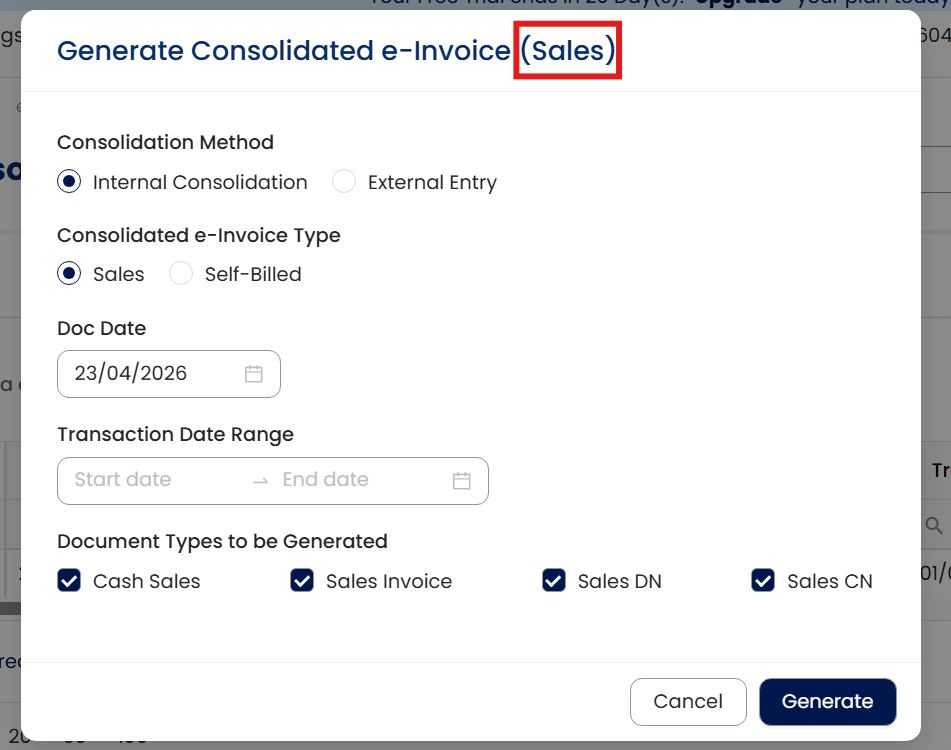
Ensure that the correct Consolidated e-Invoice type is selected.
To generate Sales Consolidated E-Invoice
To generate Self-Billed Consolidated E-Invoice
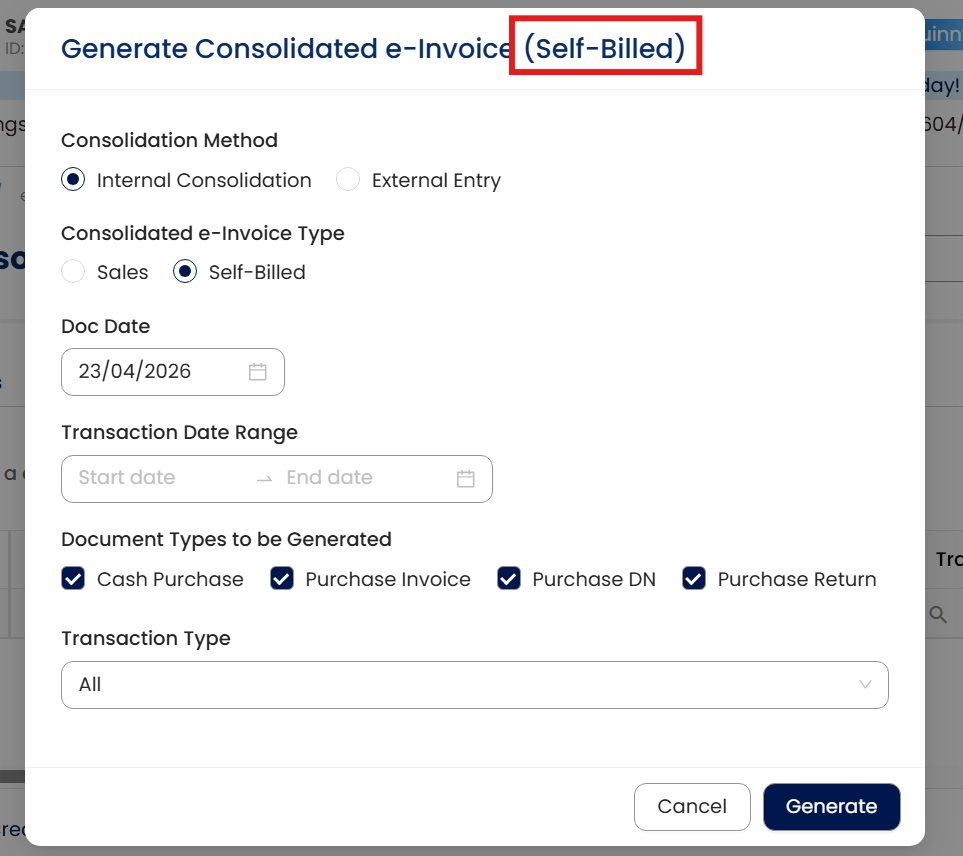
Next, determine the Doc Date and the Transaction Date Range of the Consolidated E-Invoice. Click Generate.
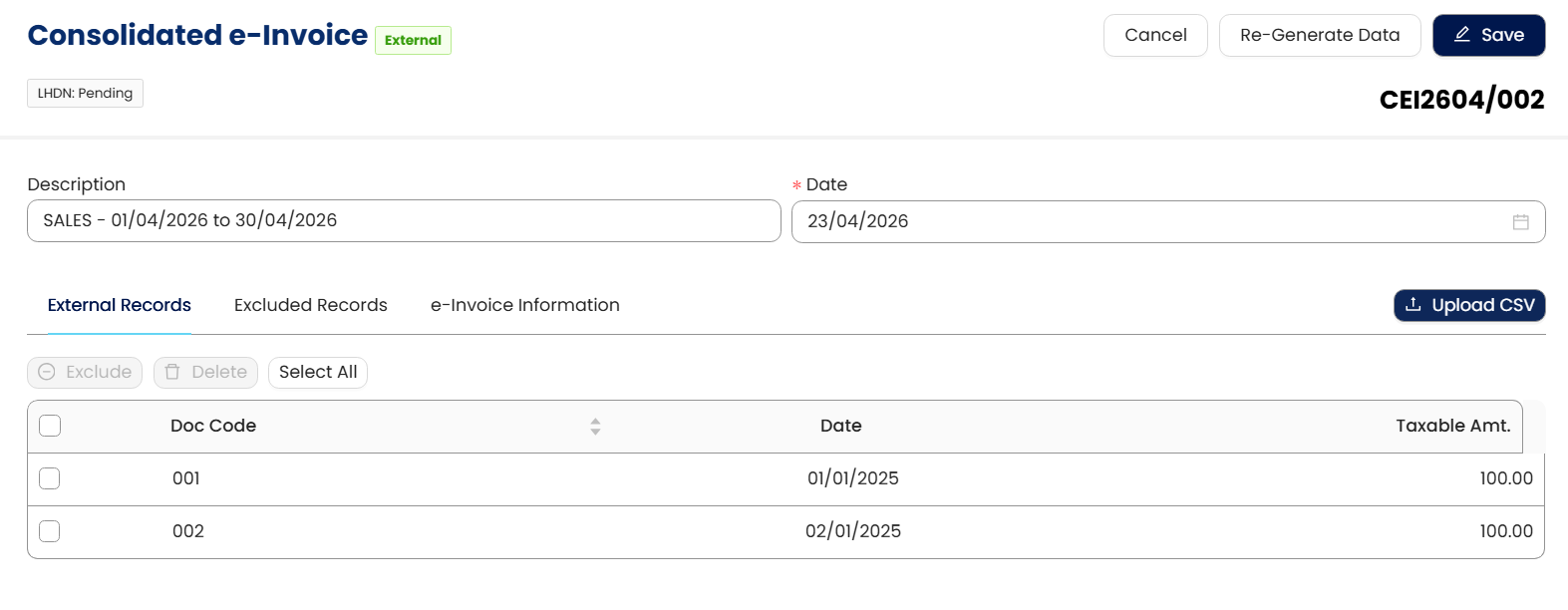
The Consolidated e-Invoice screen will be created. On the top right, click on Edit.

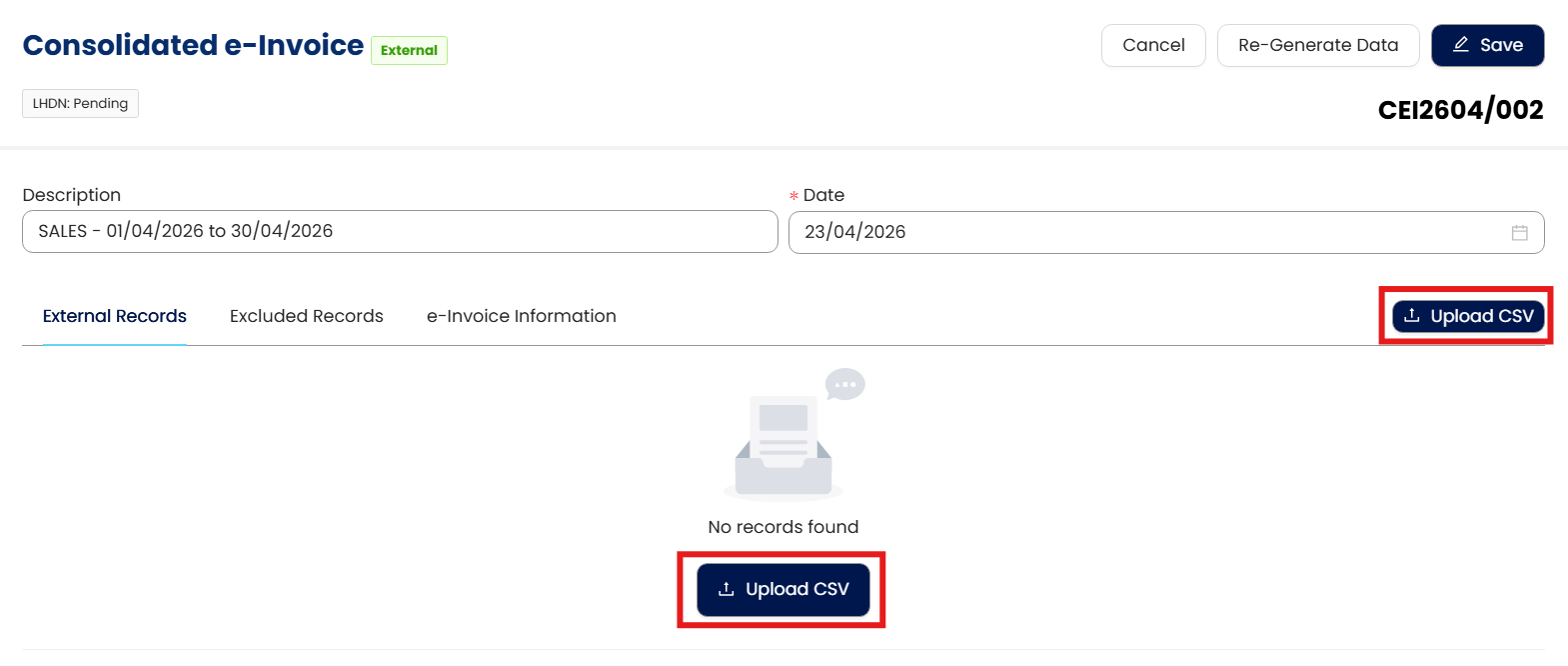
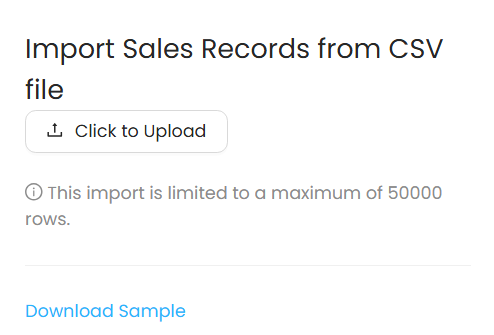
Next, click on either of the Upload CSV buttons.
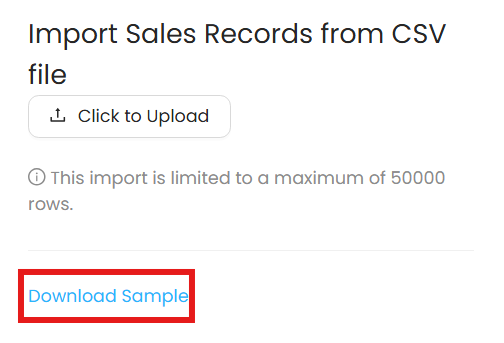
Click on Download Sample to obtain the CSV file template for importing transactions.
Open the downloaded CSV file.
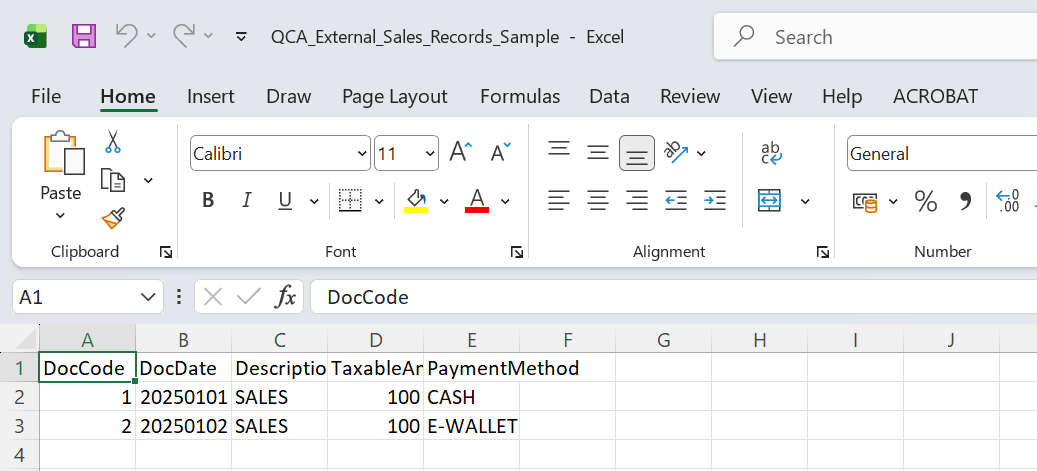
Fill in the transaction details accordingly. (Note: The Maximum limit is 50,000 rows. If exceeded, create another CSV file.
DocCode (Compulsory) = The receipt or bill number of the transaction.
Tips: Change the format of the column from Number to Text. This will ensure that if the document code begins with the number ‘0’, the number will be retained. Eg: 01INV001.
DocDate (Optional) = Ensure the format of [yyyymmdd] as follows. Eg: 5th January 2025, in the column, write down ‘20250105’.
Description (Optional) = Description of the transaction.
TaxableAmount (Compulsory) = The net amount of the transaction.
PaymentMethod (Optional) = Ensure the payment method type is created beforehand in the system. Write down the code as created in the system.
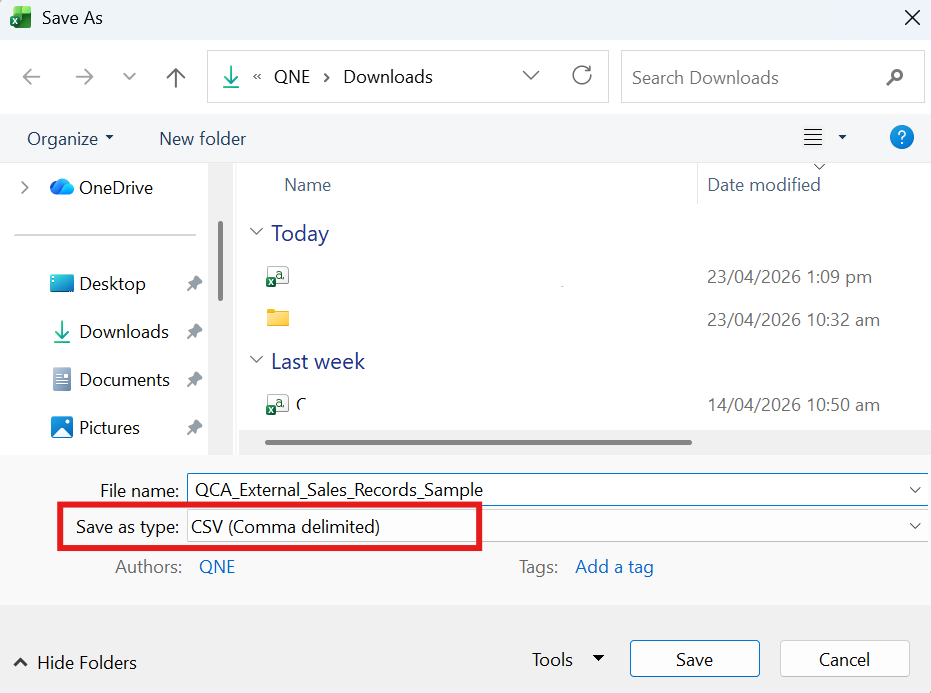
After completing the data entry, save the file as a CSV file.
When prompted with a text box upon saving, click Yes to proceed.
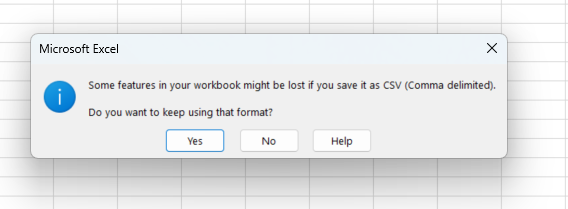
After saving the document:
Go back to the Consolidated e-Invoice Upload screen in QNE AI Cloud Accounting.
Click Click to Upload and select the previously saved document.
Click Open to proceed.
The system will generate the imported data, making it ready for Consolidated E-Invoice submission.
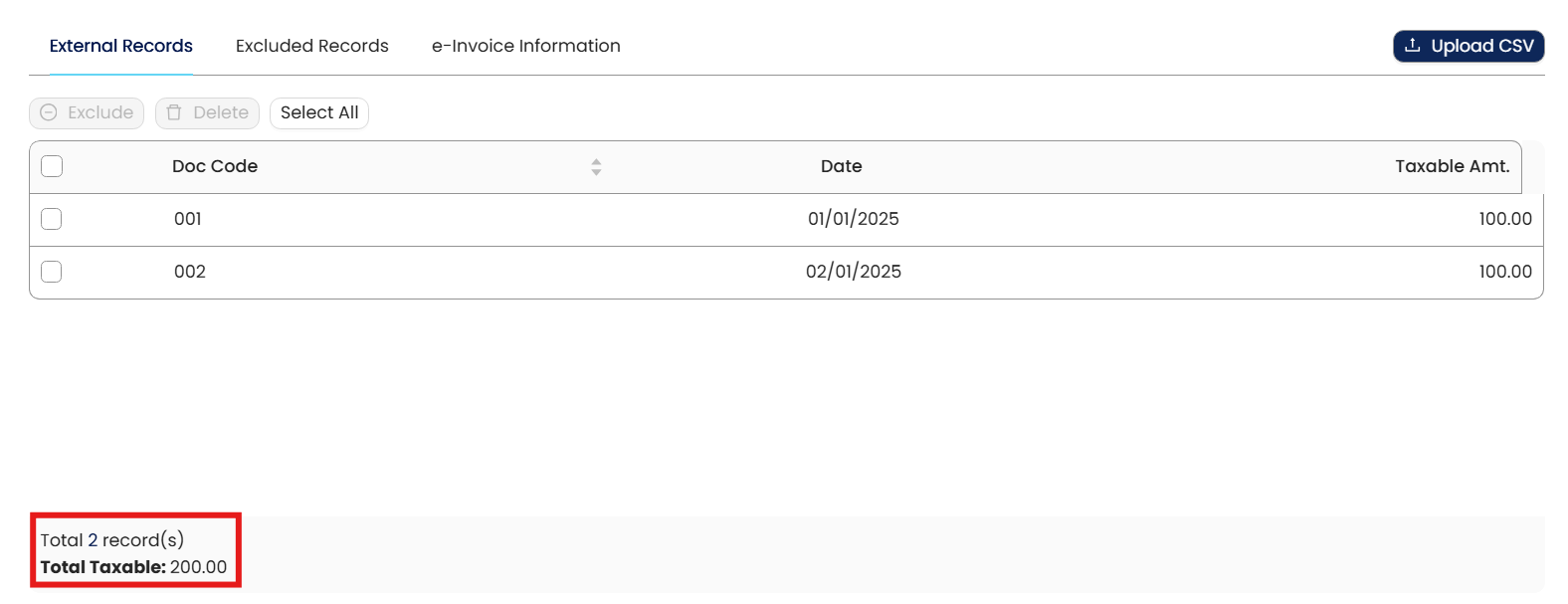
At the bottom of the list, you will see the total records and total amount of the imported records.
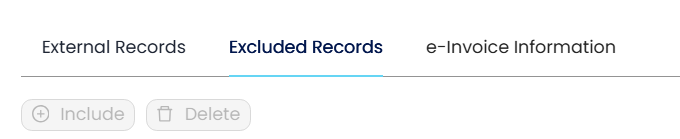
There are 3 tabs with their own functions:
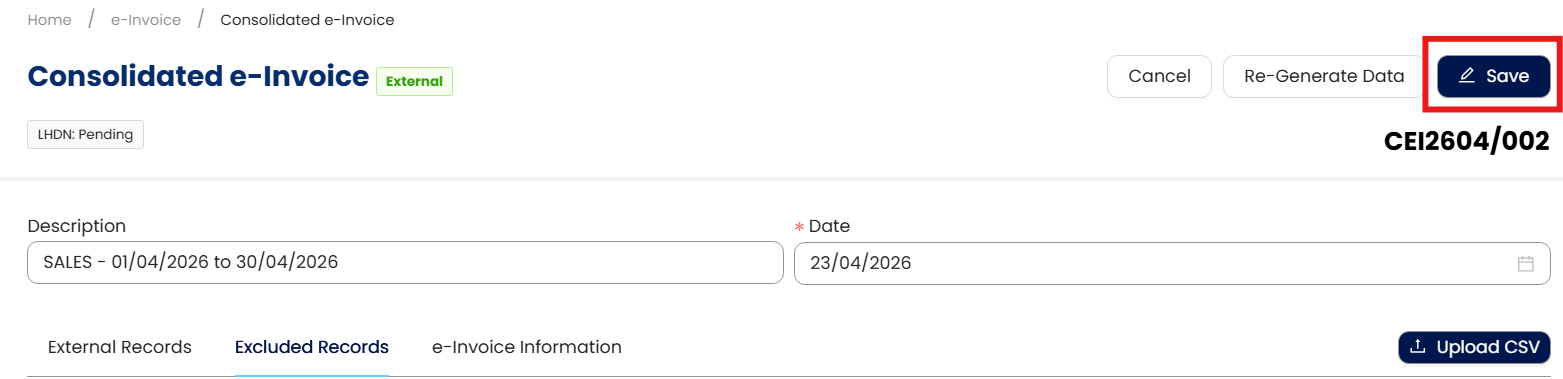
If there are no adjustments required, you can proceed to save the consolidated e-Invoice.
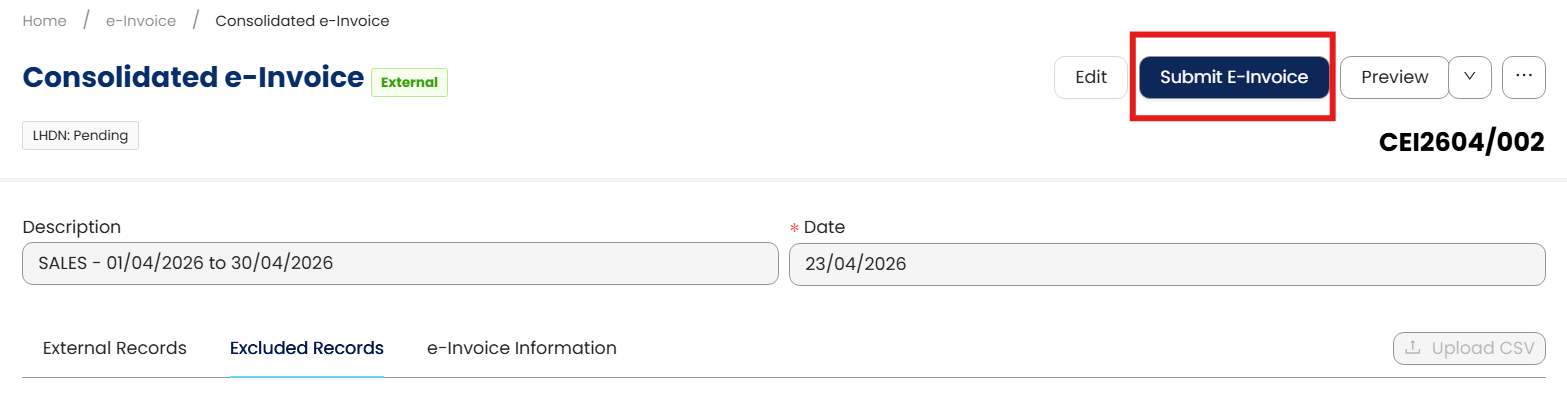
Click on Submit e-Invoice to submit the Consolidated e-Invoice.
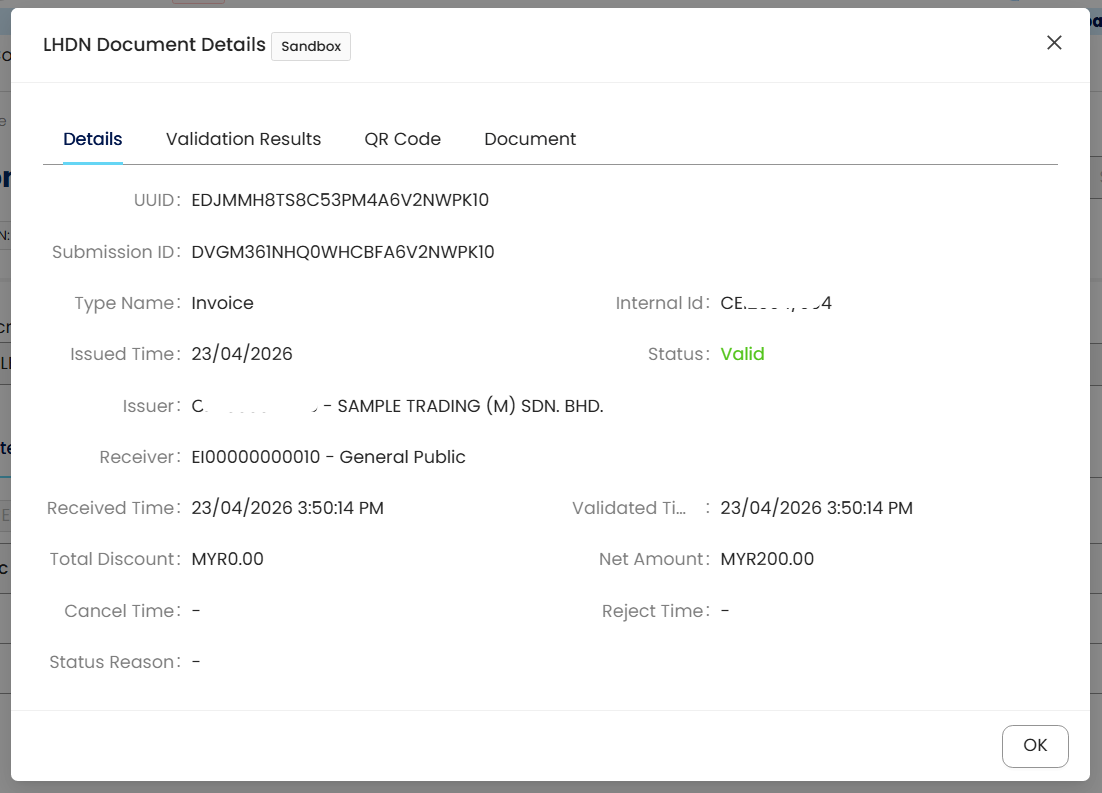
The system will display an LHDNM Document Details pop-up box for you to check and track the submission status. Click OK to close the pop-up box.
Modifying and Excluding Imported Records
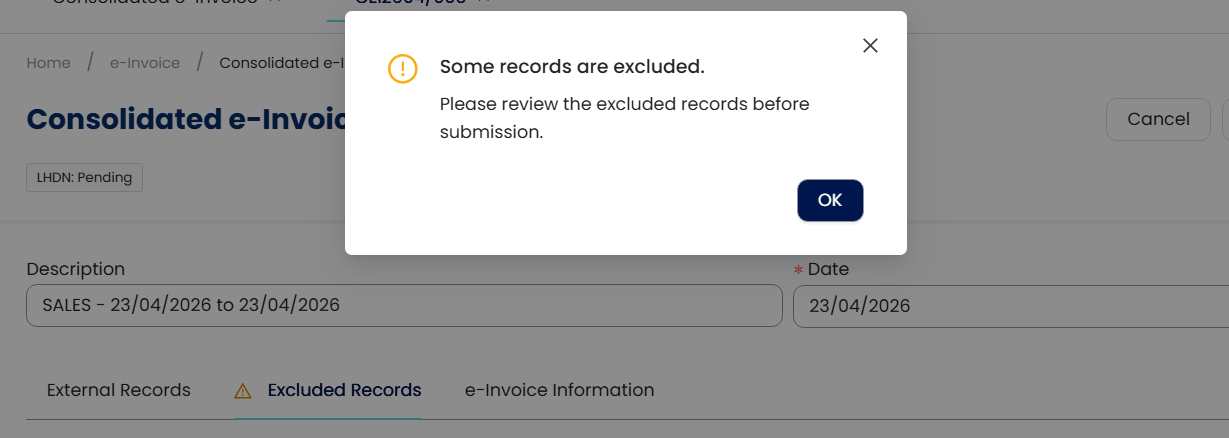
If upon importing the transaction records, there are already Cash Sales with the same document codes as in the records in the CSV import list, system will prompt a message stating that some records are excluded from the current consolidated e-Invoice list.
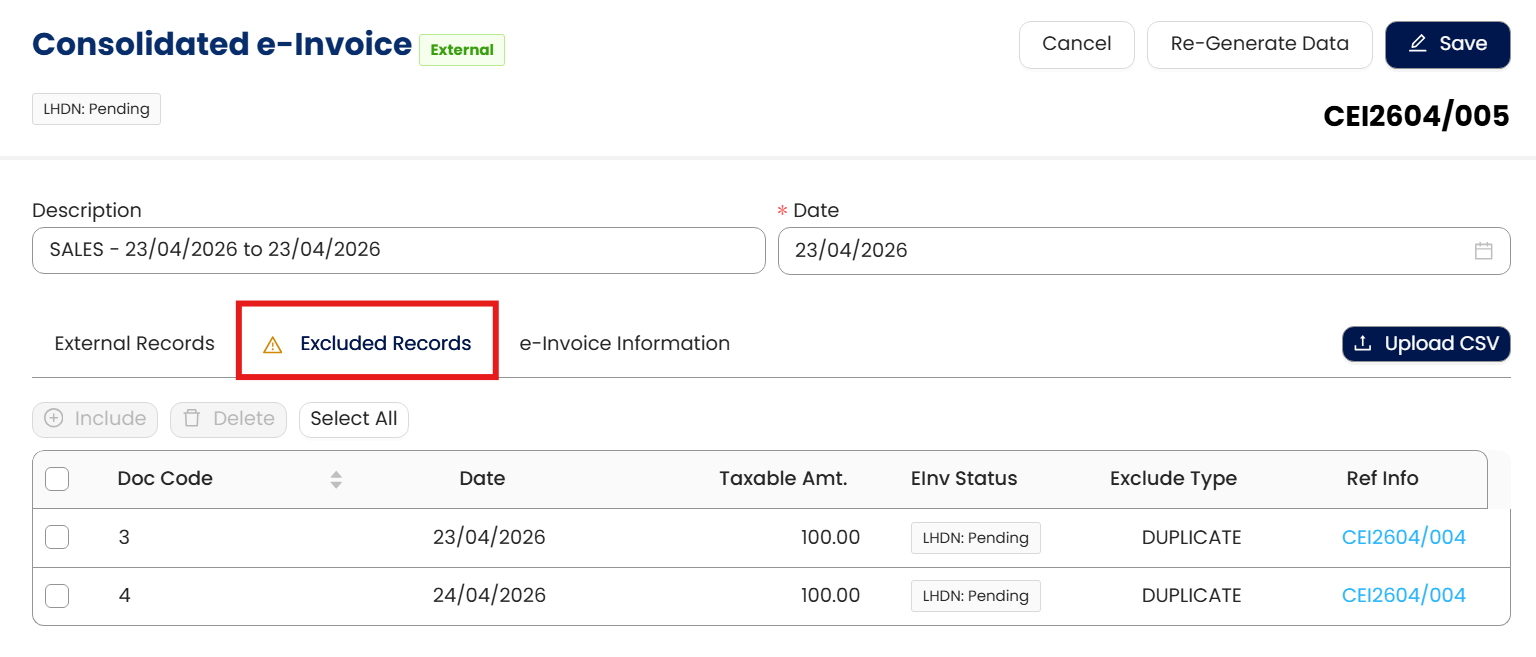
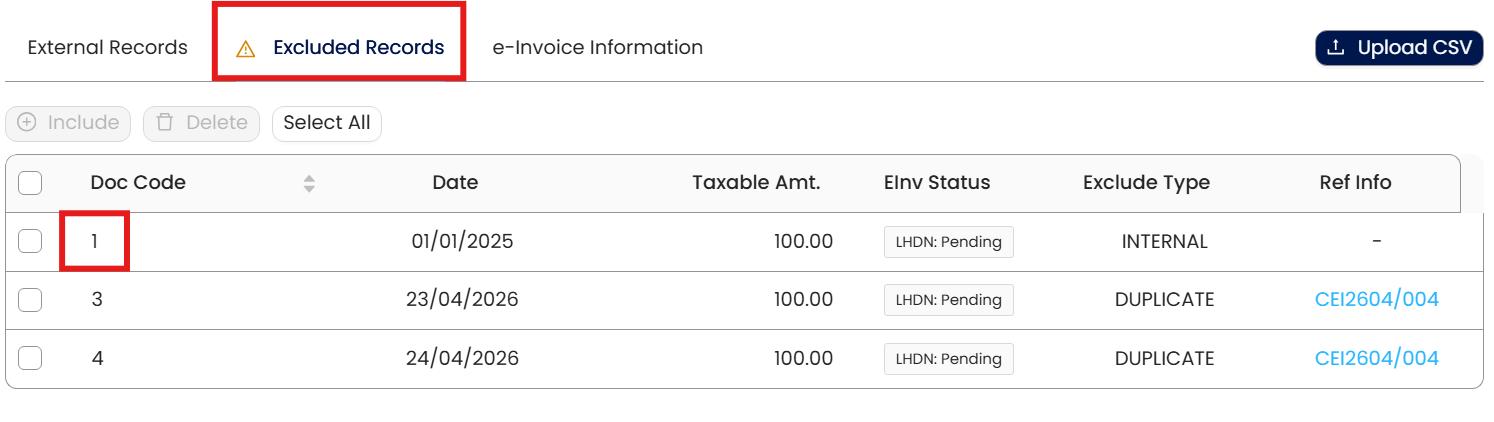
A warning icon beside the Excluded Records tab will display to indicate that repeated records are excluded and moved to the Excluded Records list.
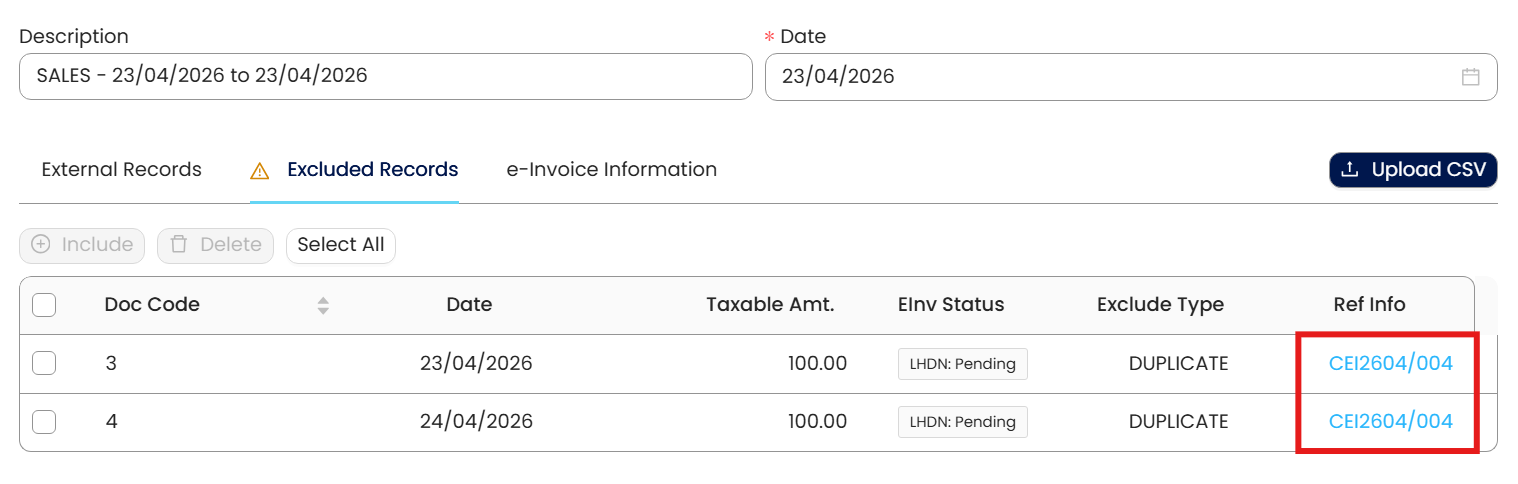
The user may revisit the transactions that were excluded by the system by clicking on the Ref Info value and be redirected to the individual Cash Sales record.
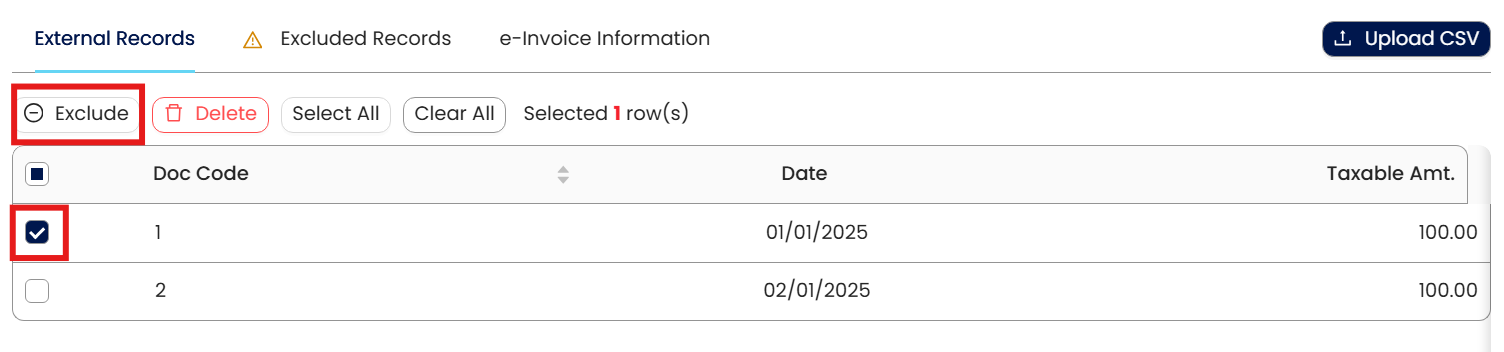
Users have the option to modify the imported records in the list by ‘Exclude’ certain transactions:
Under External Records, tick the box next to the document you want to exclude and select Exclude.
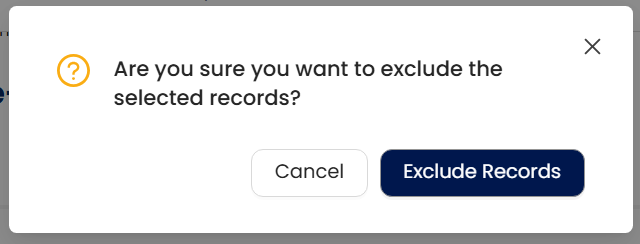
Click Exclude Records to confirm the omission.
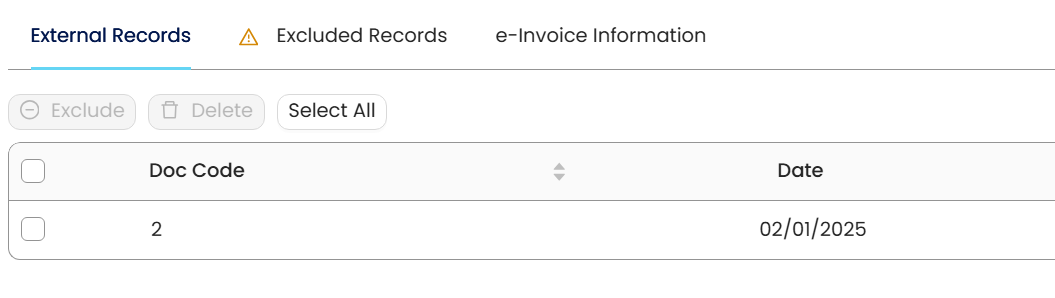
The document is now omitted, leaving only those ready for consolidation.
The Excluded transactions can be found in the Excluded Records column.
In the Excluded Records user is allowed to Reinclude a Transaction:
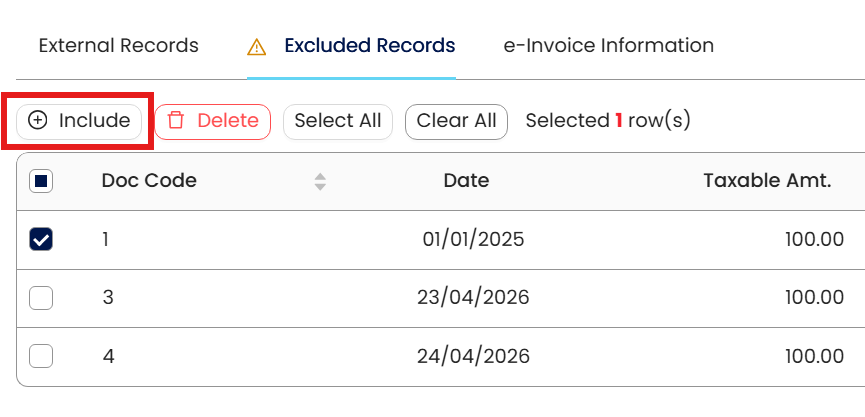
Tick the box next to the excluded transaction in the Excluded Records column.
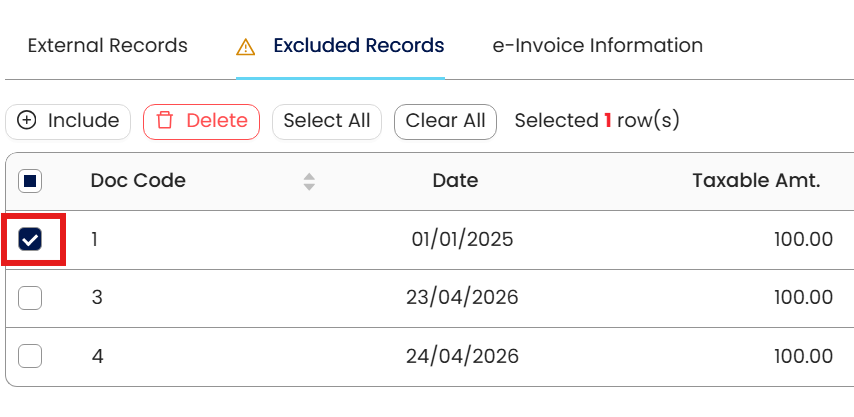
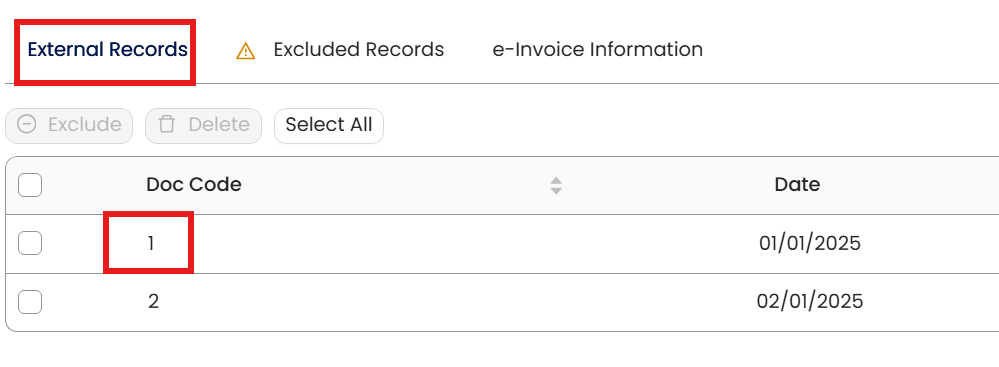
Click Include to add the transaction back to the External Records list.
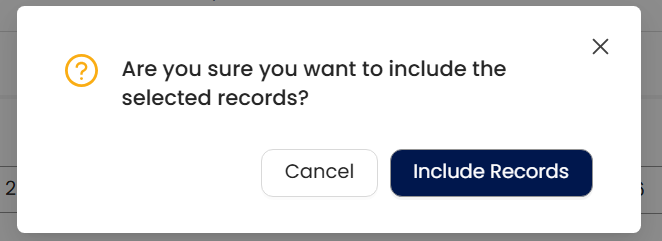
Click Include Records to confirm the addition.
The document is now added back and will be included in the Consolidated E-Invoice submission.
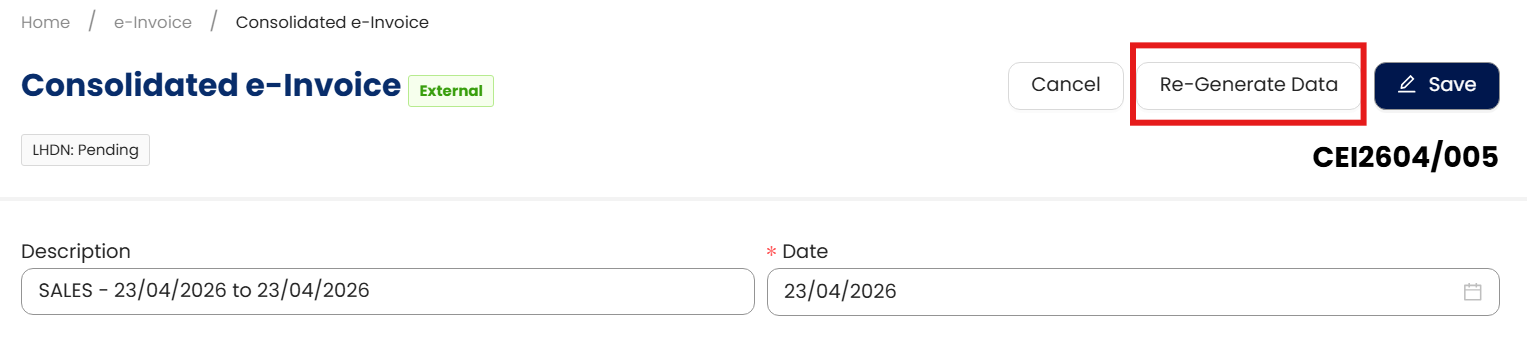
The Re-Generate Data button restores all imported records to the original state, as per the item that is recorded in the CSV file.
Congratulations! You have successfully imported Sales transactions for Consolidated E-Invoice.
You can apply the same method to import Self-Billed Transactions for future Consolidation events.
System Scope: QNE AI Cloud Accounting / N3 AI Accounting
Was this article helpful?
That’s Great!
Thank you for your feedback
Sorry! We couldn't be helpful
Thank you for your feedback
Feedback sent
We appreciate your effort and will try to fix the article
