Overview
In this guide, we’ll show you how to easily export your report designs and use the same format for other companies, saving you time and keeping your reports consistent. Whether you’ve customized a sales invoice, stock report, or any other document, you’ll learn step-by-step how to export the layout and import it into another company’s setup.
This way, you don’t have to recreate the design from scratch, and you can ensure all your companies have the same professional look and feel for their reports. It’s quick, simple, and perfect for keeping things consistent across your business.
Scenario
You’re having a few companies using N3 and wanted the same report format template for both of the companies. Kindly refer below on the steps you can use.
Solution
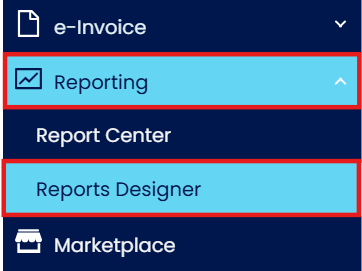
Go to Reporting > Report Designer
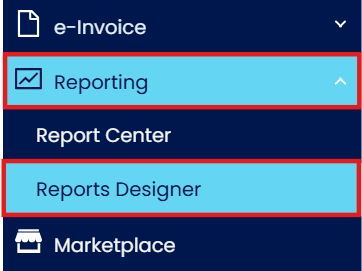
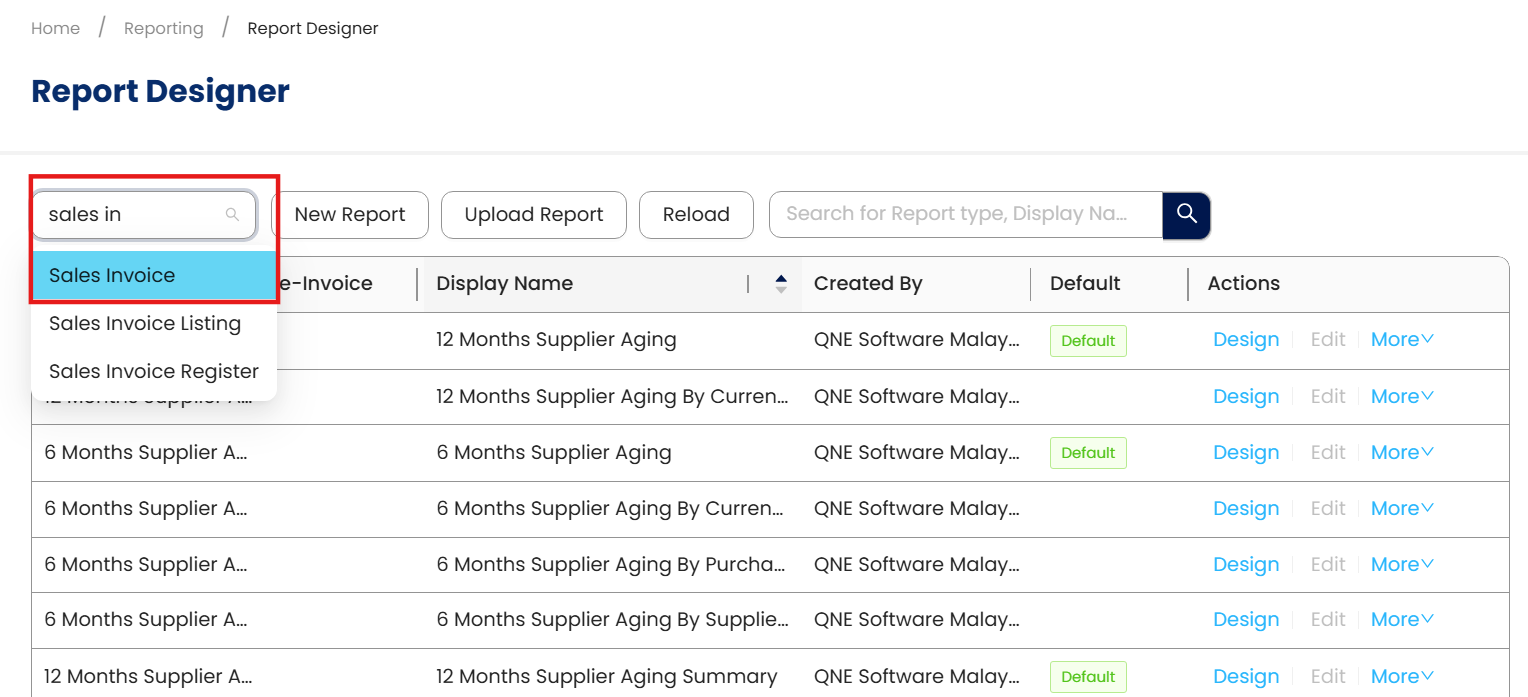
In the report designer, you can choose whichever report design you would like. In this tutorial, we’ll use Sales Invoice report design as example
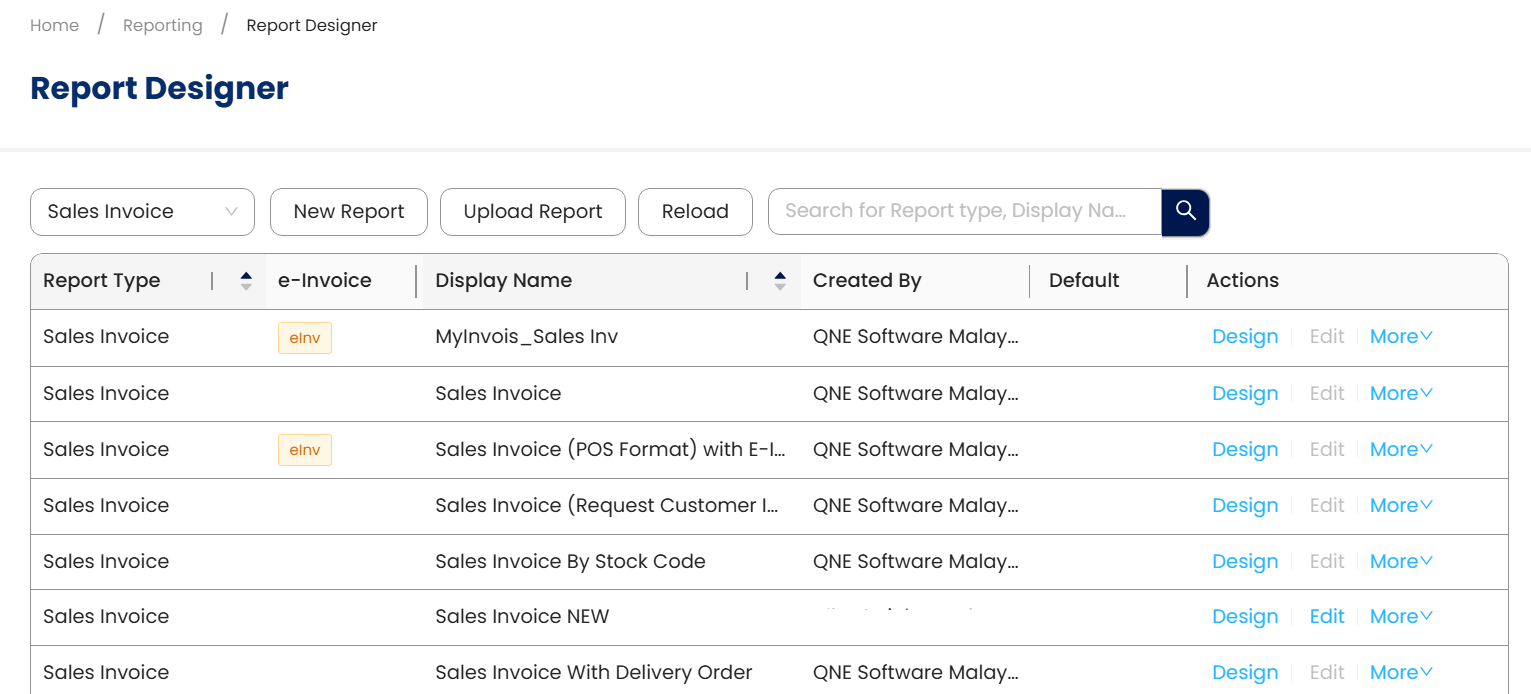
Next, you can choose which one of the report design that you’d like to export and on your right side, you should be able to see More drop-down options
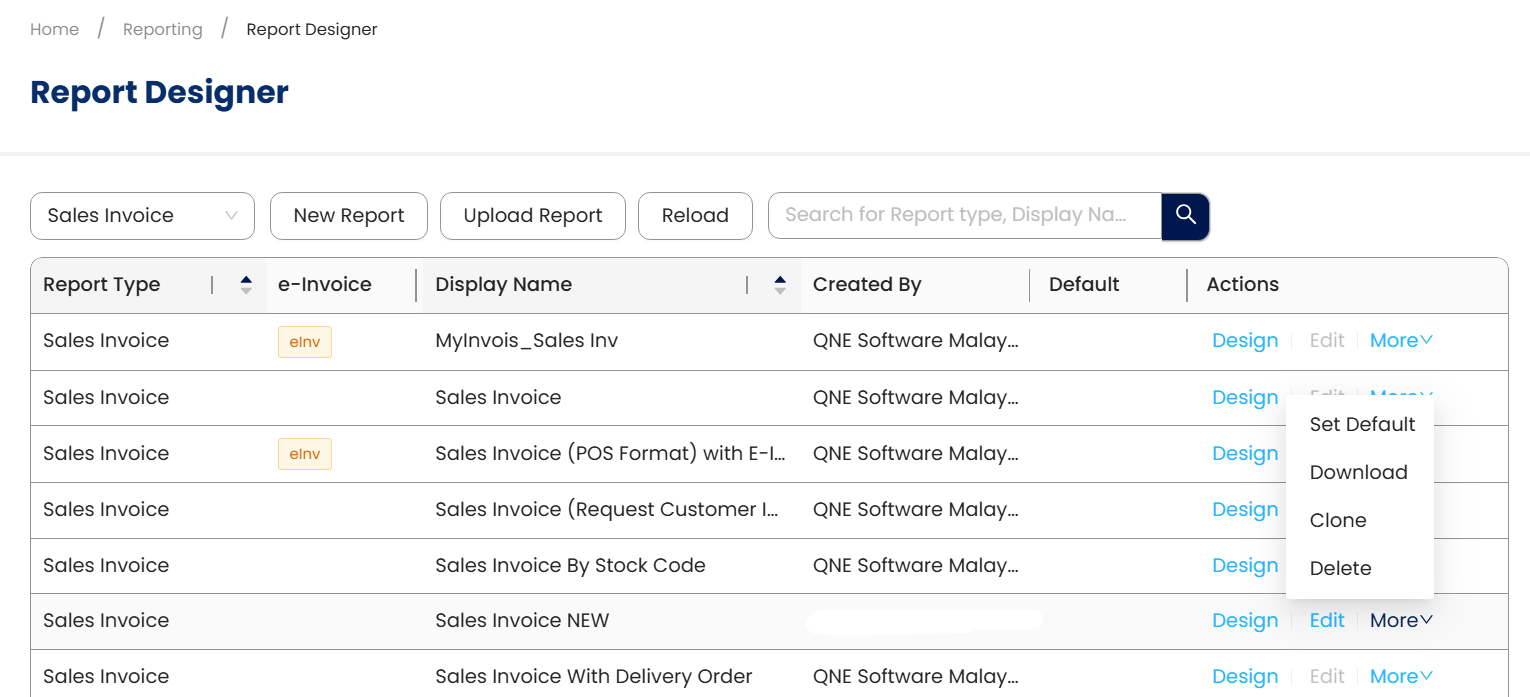
Then, you can click on Download to download the report design. The file should be in .repx format
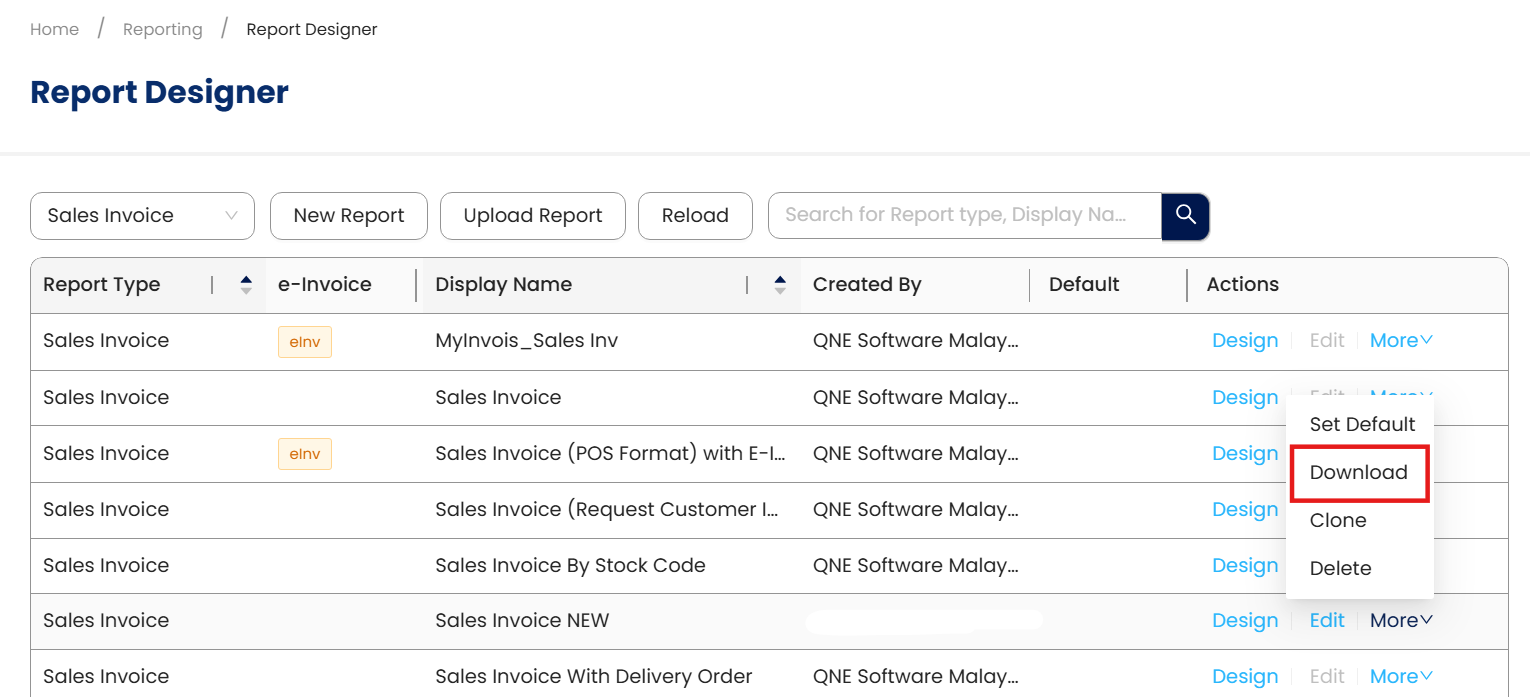
Once you’re done with the exportation of the report designer, you can proceed to login to the other company that’ll use the same report format.
Head over to Reporting > Report Designer
Go to sales invoice as well
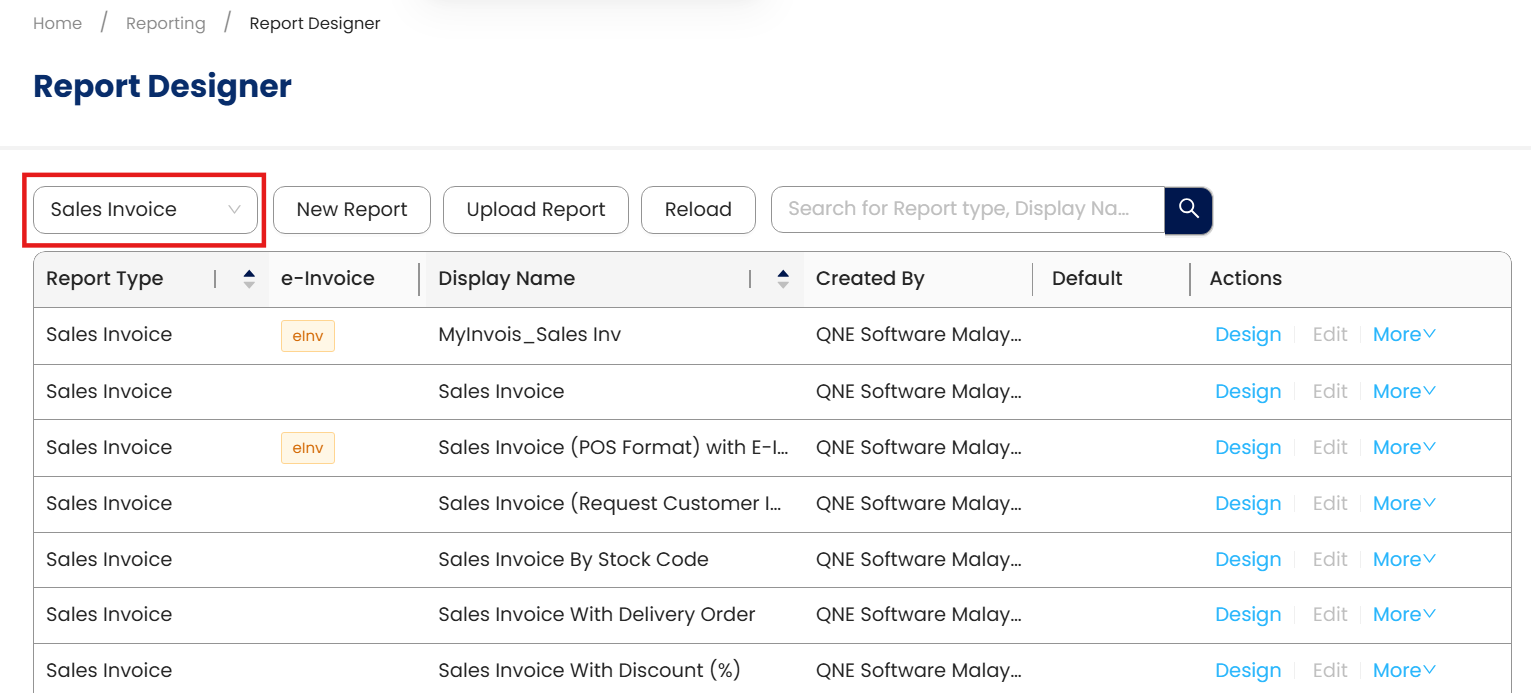
Click on the Upload Report button available
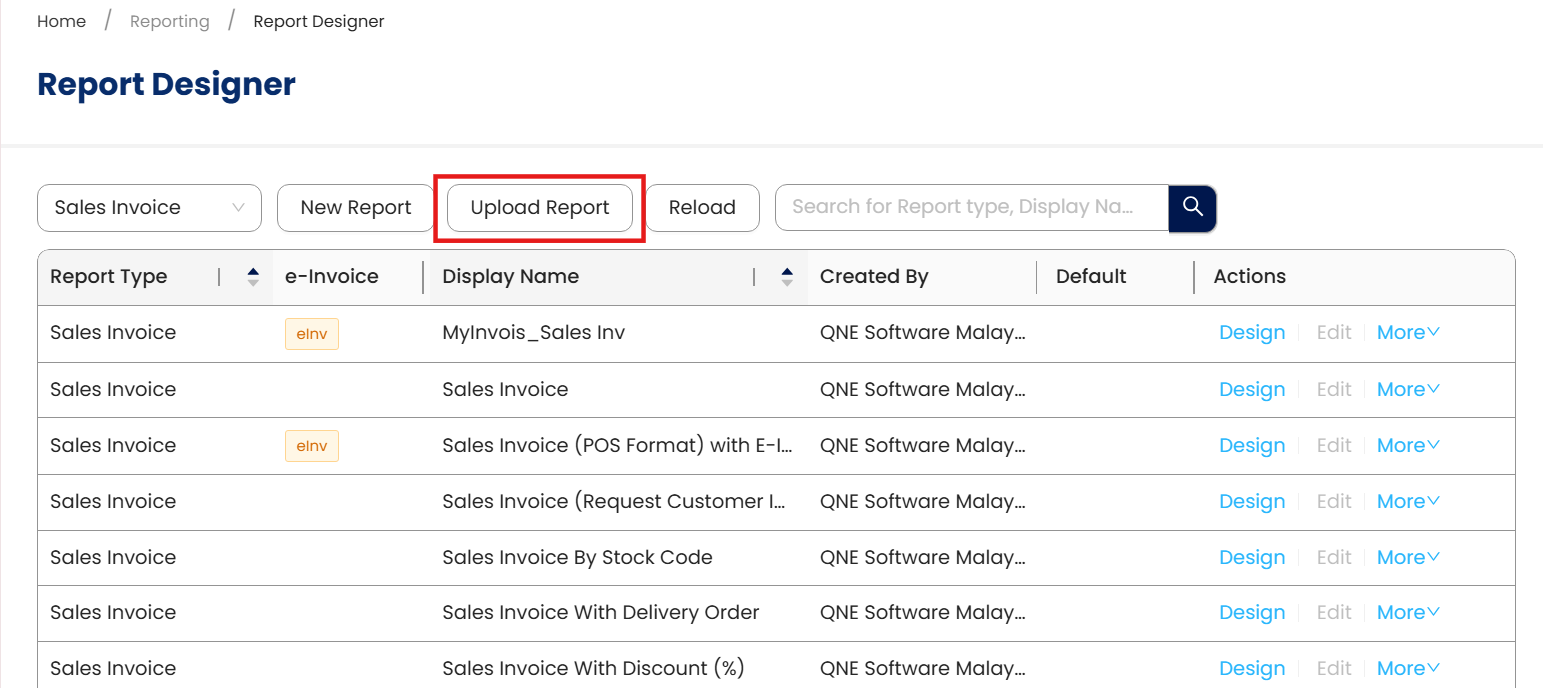
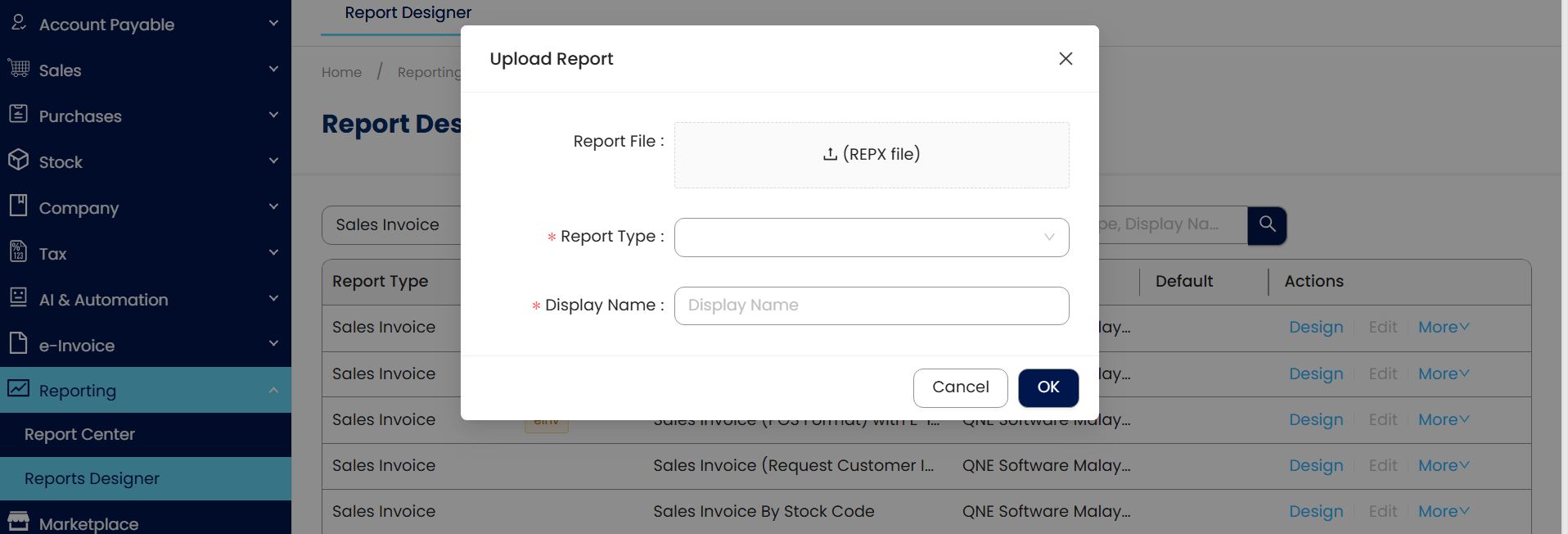
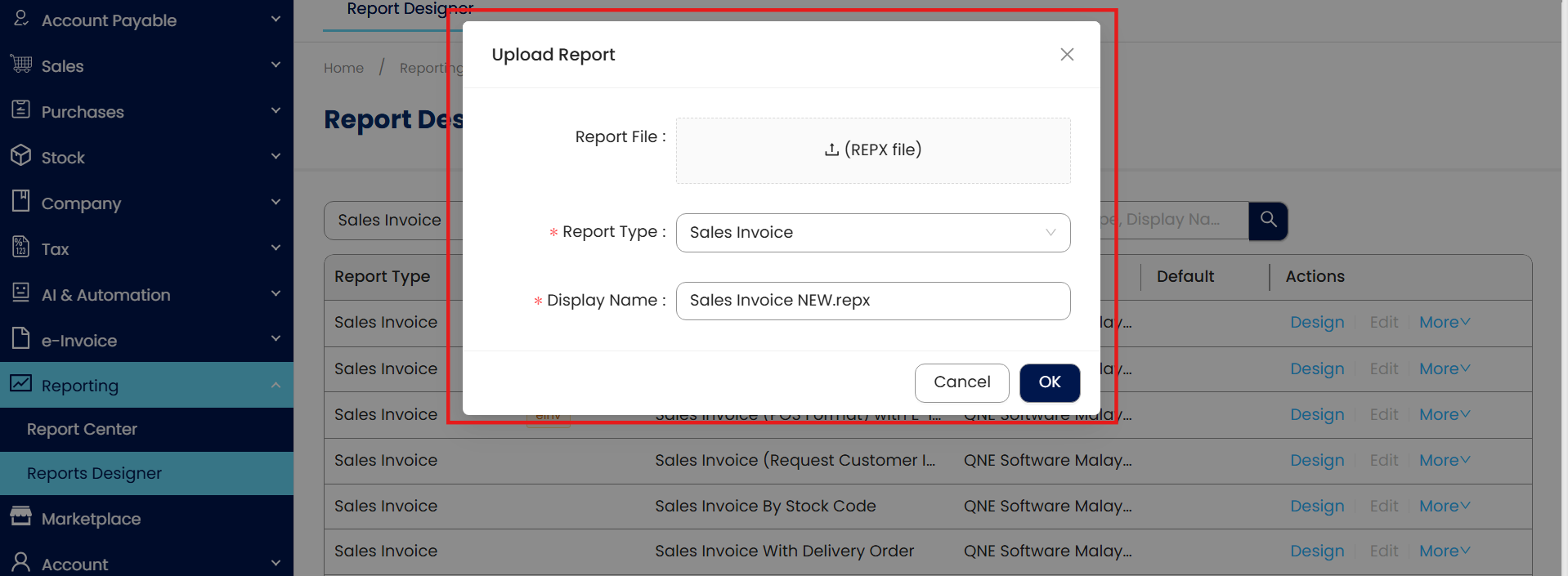
Choose the exported file > Choose Report Type: Sales Invoice > Display Name > Click OK
Upload report file success - we’ve completed the process ✅
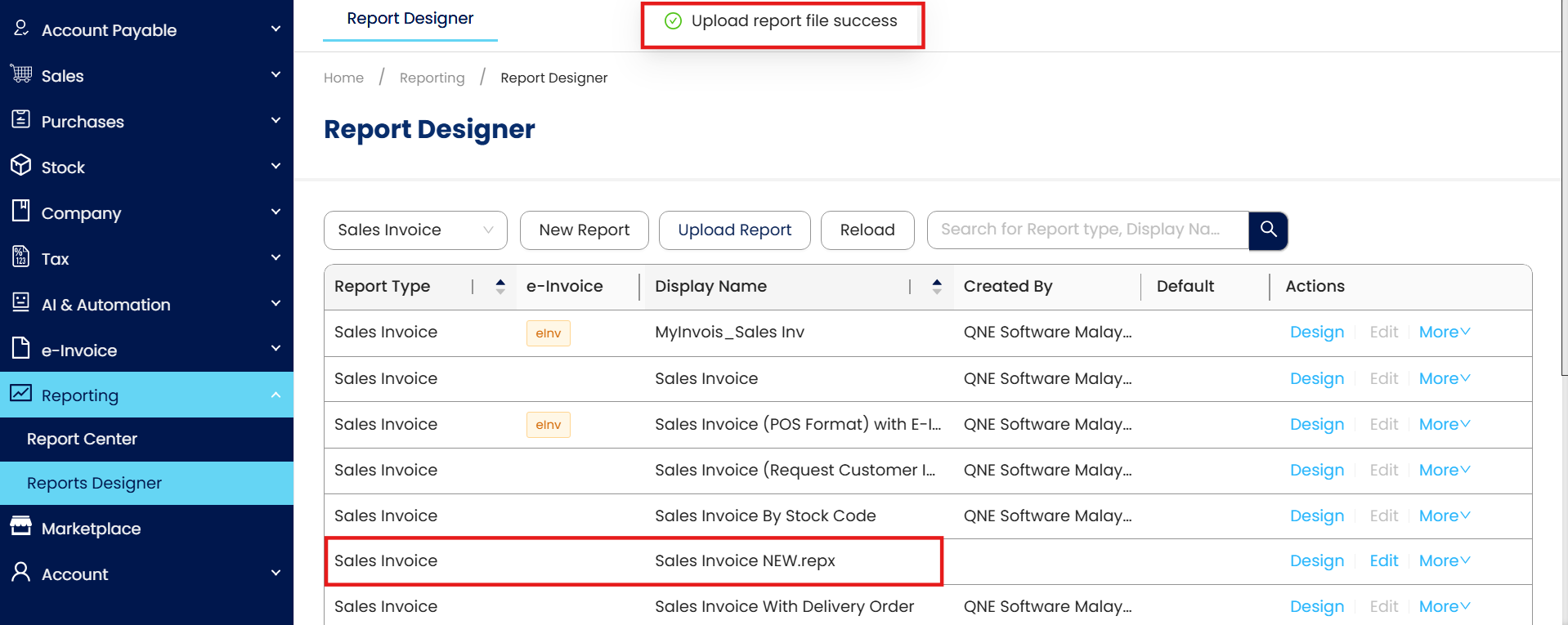
Done!
** Learn more about Azure Cloud
** Learn more about QNE Hybrid Cloud Software
System Scope: QNE AI Cloud Accounting / N3 AI Accounting
Was this article helpful?
That’s Great!
Thank you for your feedback
Sorry! We couldn't be helpful
Thank you for your feedback
Feedback sent
We appreciate your effort and will try to fix the article
