Overview:
This guide will show you how to easily import payment terms into the N3 AI Accounting system. By following these steps, you will learn how to prepare and upload payment terms data via CSV files, ensuring that your payment terms are accurately reflected in the system for smoother transactions and better financial management. Whether you’re adding new payment terms or updating existing ones, this guide will walk you through the entire process for a seamless import experience.
Solution:
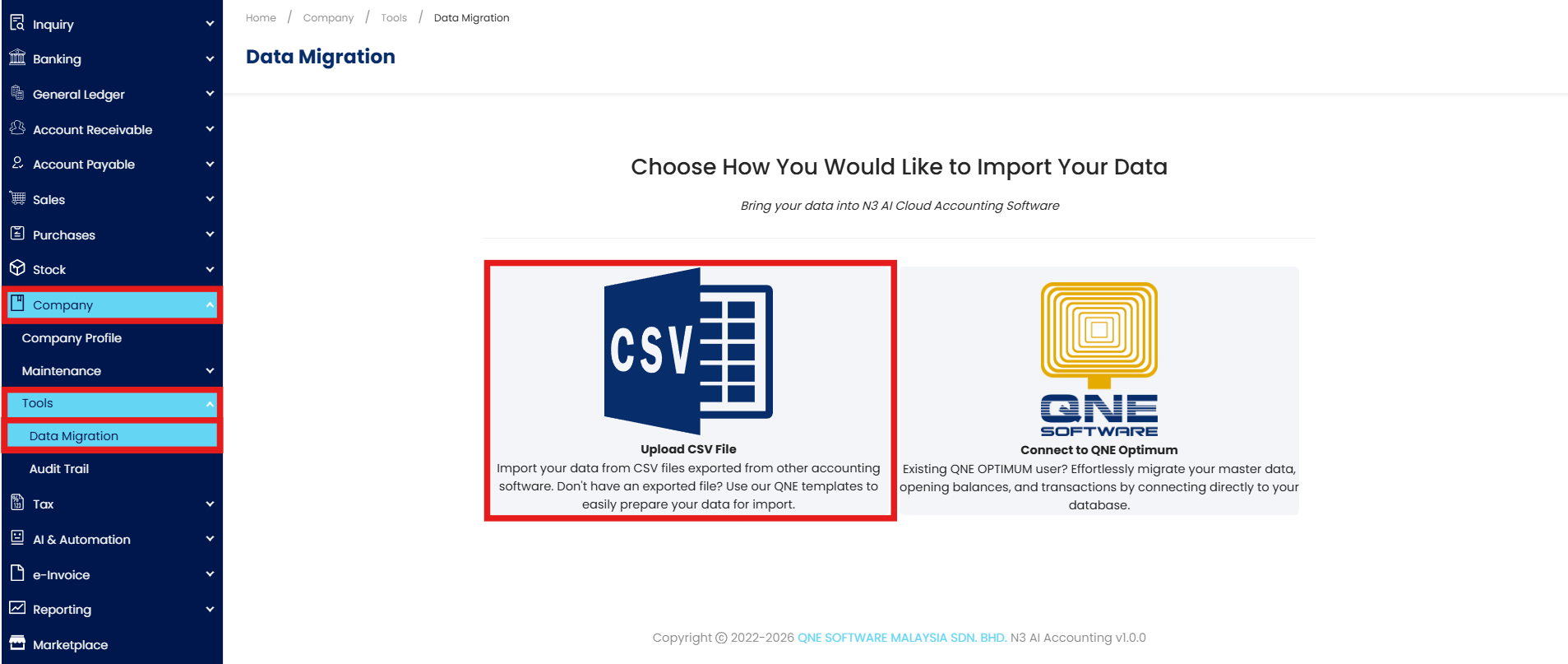
Step 1 - Expand Company > Expand Tools > Press Data Migration > Press Upload CSV File > Press Payment Terms.
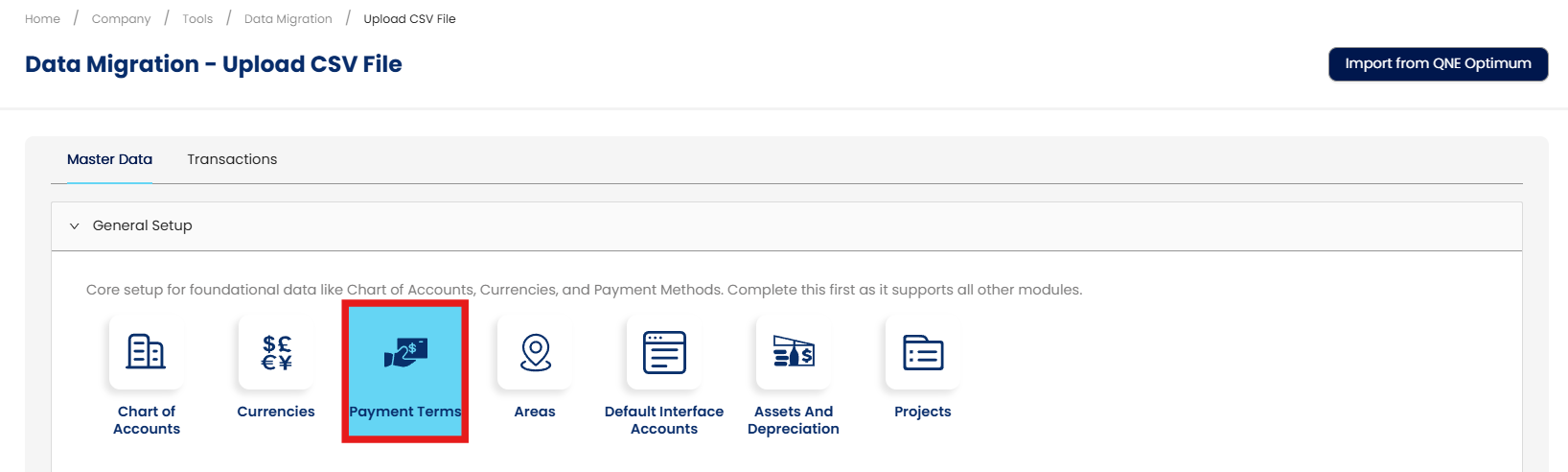
Step 2 - After Press Payment Terms, below Screen will prompt, Press Download Sample
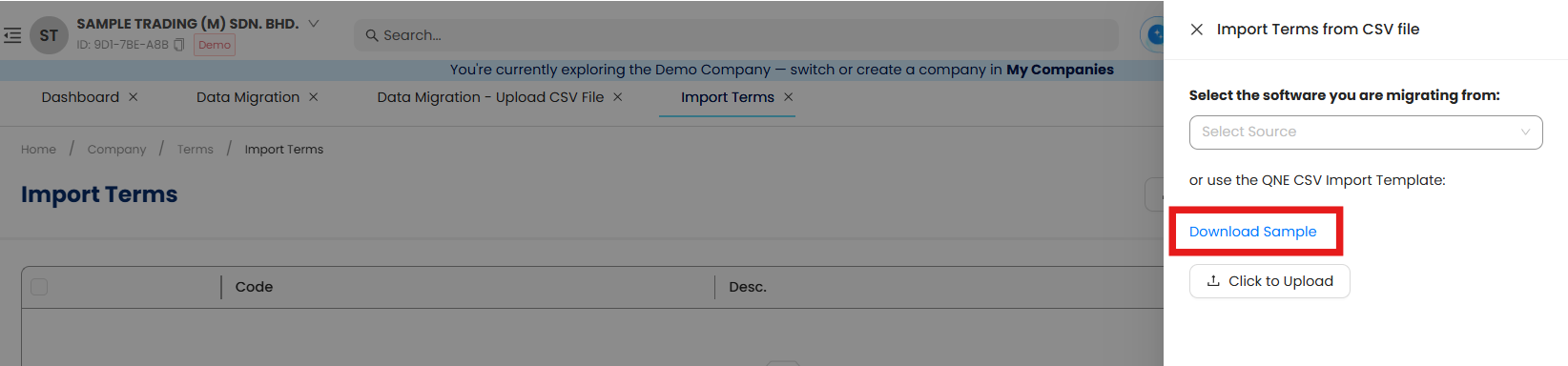
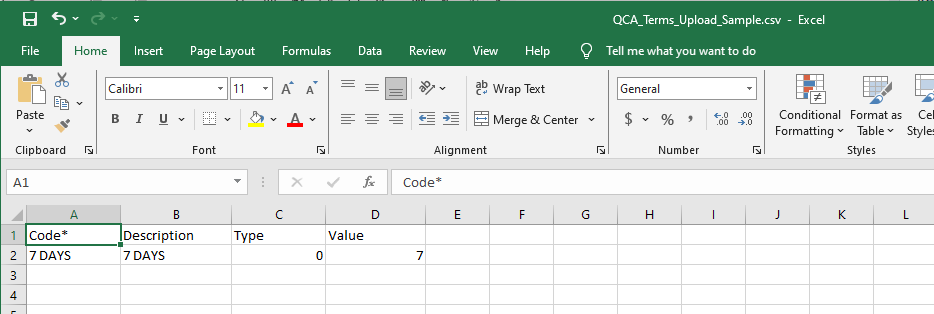
Step 3 - Below is Payment Terms CSV
Code - Payment Term Code
Description - Payment Term Description
Type - Due in Days or Due in Months
Due in Days = 0
Due in Months = 1
Value - Number
Example: below Excel, Term Code and Description is 7 Days, Type is Due in Days, Value is 7
Step 4 -After Complete fill in the Term CSV Template, Press Upload CSV of Import Terms.
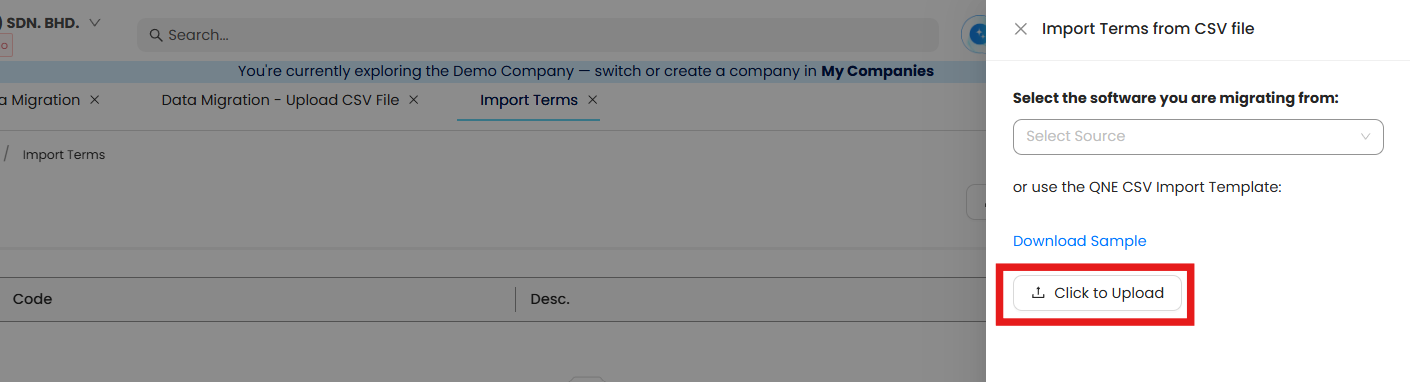
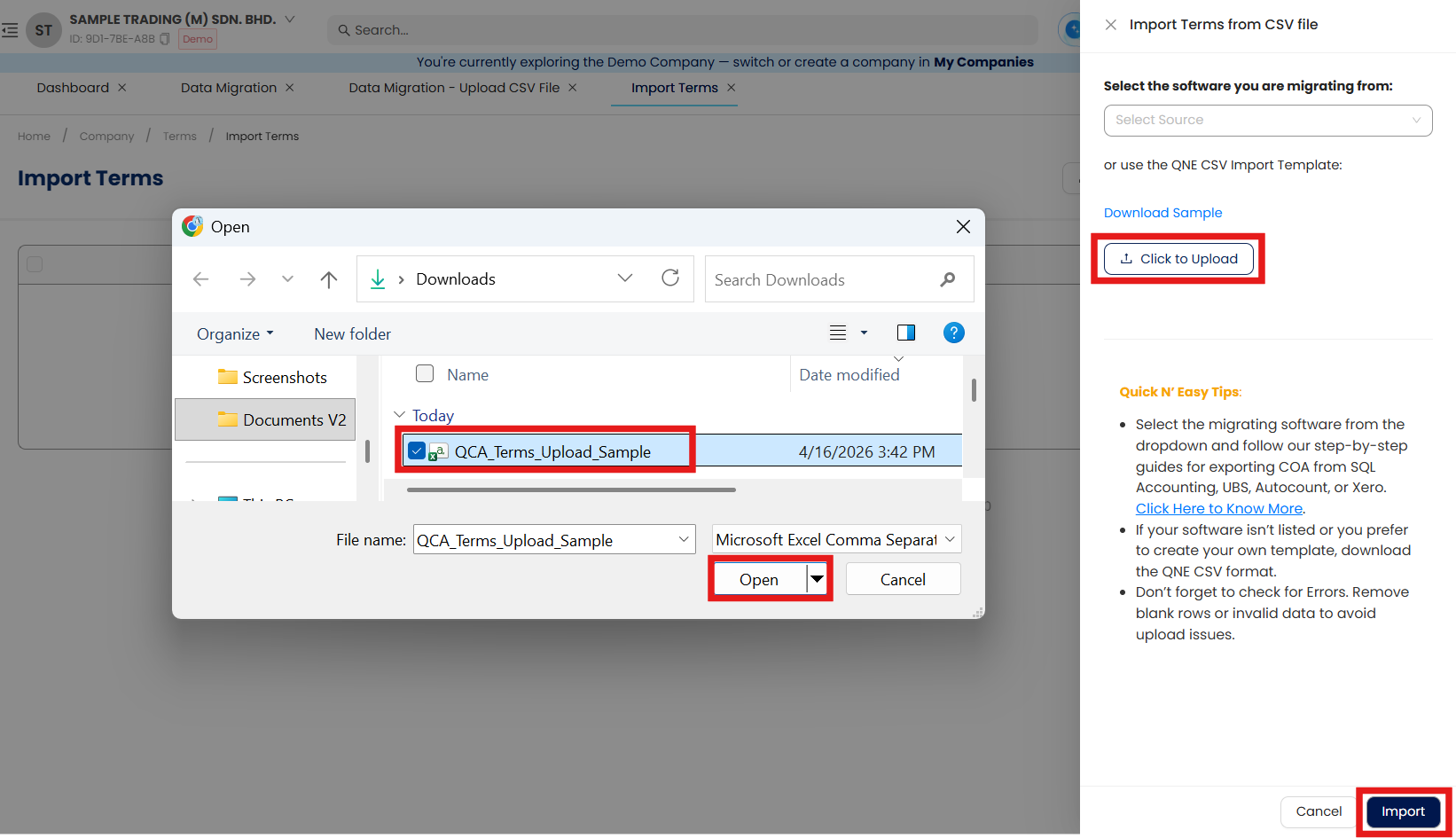
Step 5 - After Press Click to Upload, then Select the CSV file that user completed fill in, Press Open, Press Import

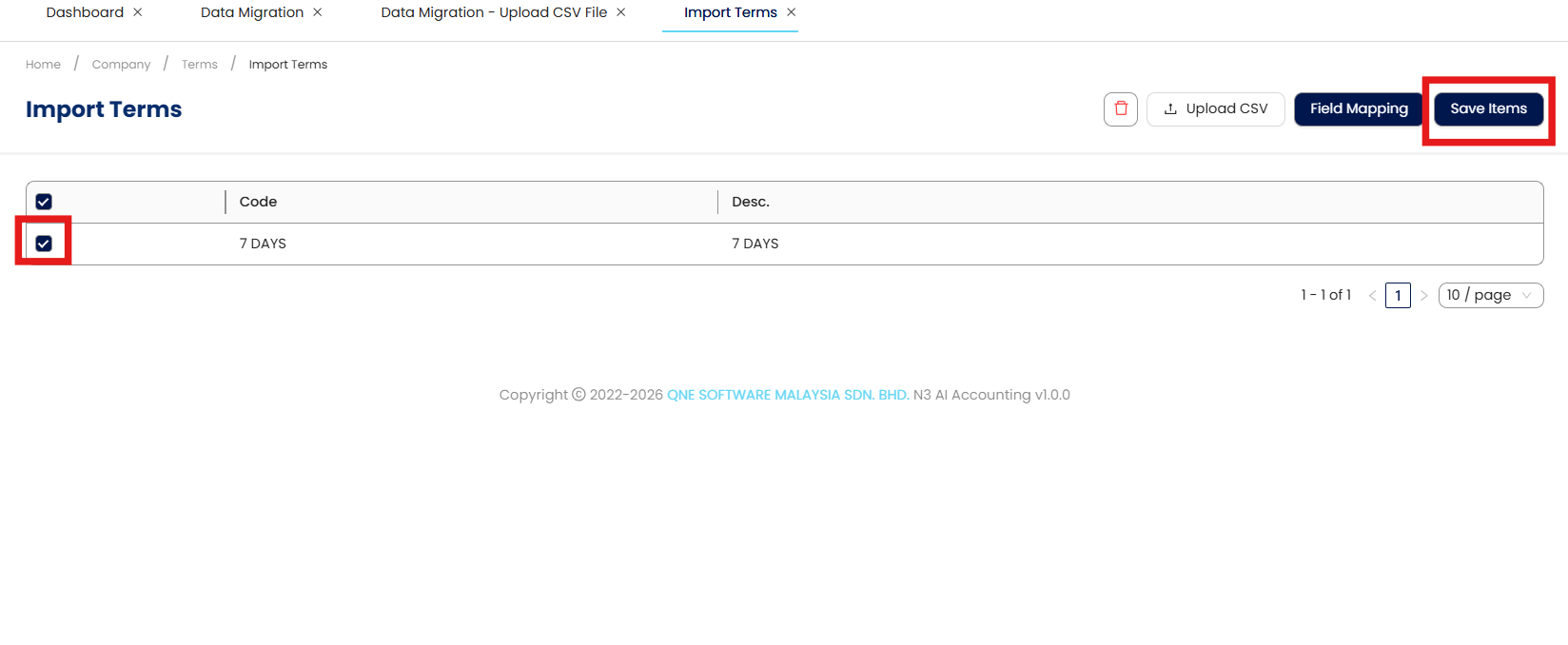
Step 6 - System will load the info from CSV file, tick the loaded result, Press Save Items.
Done!
** Learn more about Azure Cloud
** Learn more about QNE Hybrid Cloud Software
System Scope: QNE AI Cloud Accounting / N3 AI Accounting
Was this article helpful?
That’s Great!
Thank you for your feedback
Sorry! We couldn't be helpful
Thank you for your feedback
Feedback sent
We appreciate your effort and will try to fix the article
