Overview:
Cash Sale Refund is a counterpart form of Cash Sale. This form is used to allow the maintained and walk-in customers to refund their cash transactions and enables the system to reverse the customer's payment as well as update the stock inventory.
In the system, a Cash Sale Refund can only be created if there is an existing Cash Sale to be refunded; therefore, there are two methods available for creating a Cash Sale Refund:
Add New Cash Sale Refund > Transfer from Cash Sales
In Cash Sales > Transfer to Cash Sale Refund
Procedure:
Method 1: Transfer from Cash Sales
In the Navigation Pane, go to Sales > Cash Sale Refunds
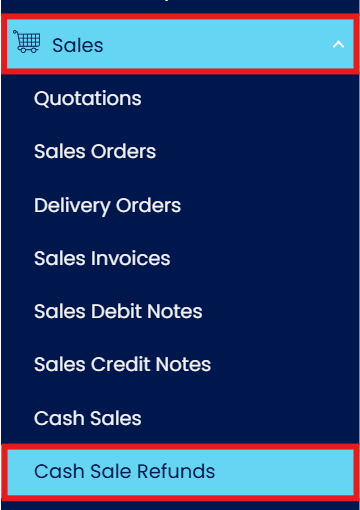
In Cash Sale Refunds, click ‘Add’

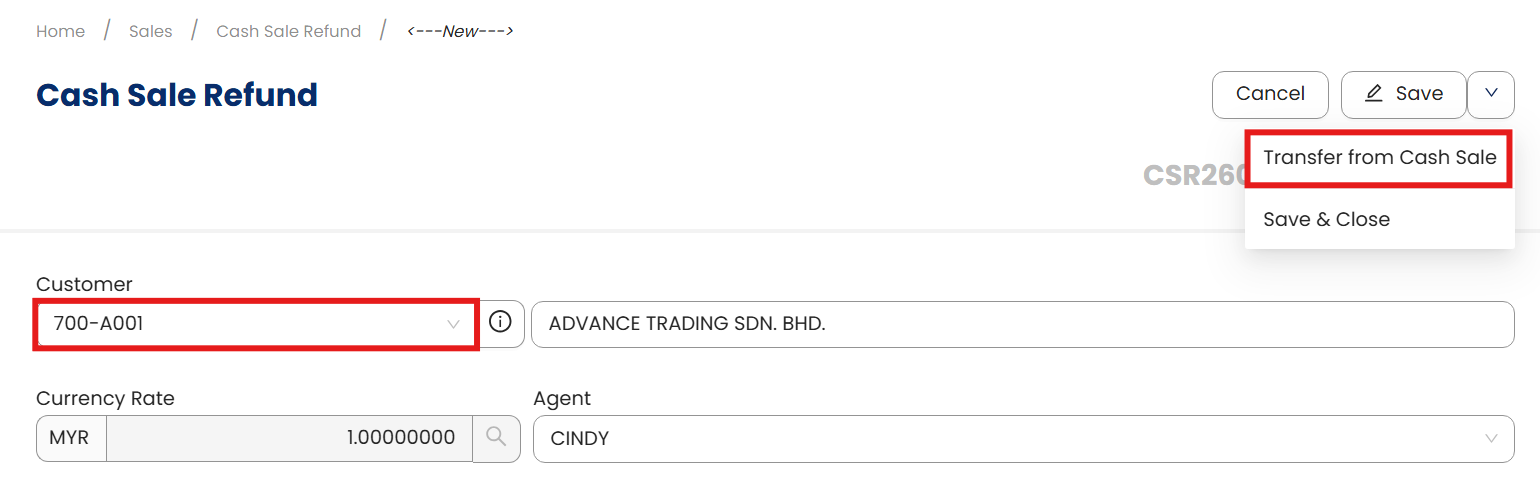
Select Customer > Transfer from Cash Sale
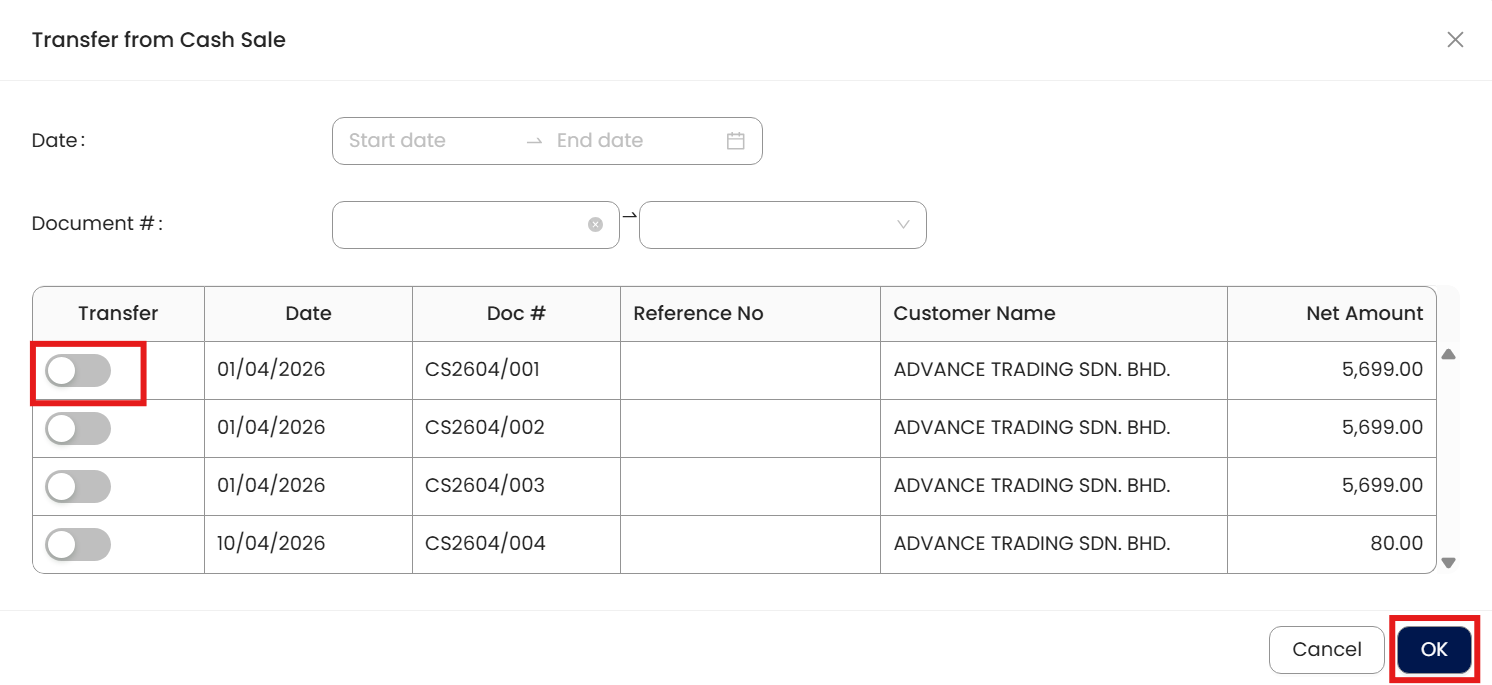
In Transfer from Cash Sales, select Cash Sale transaction to be refunded.
Once done, click ‘OK’
Once transferred, click ‘Save’.

Method 2: Transfer to Cash Sale Refund
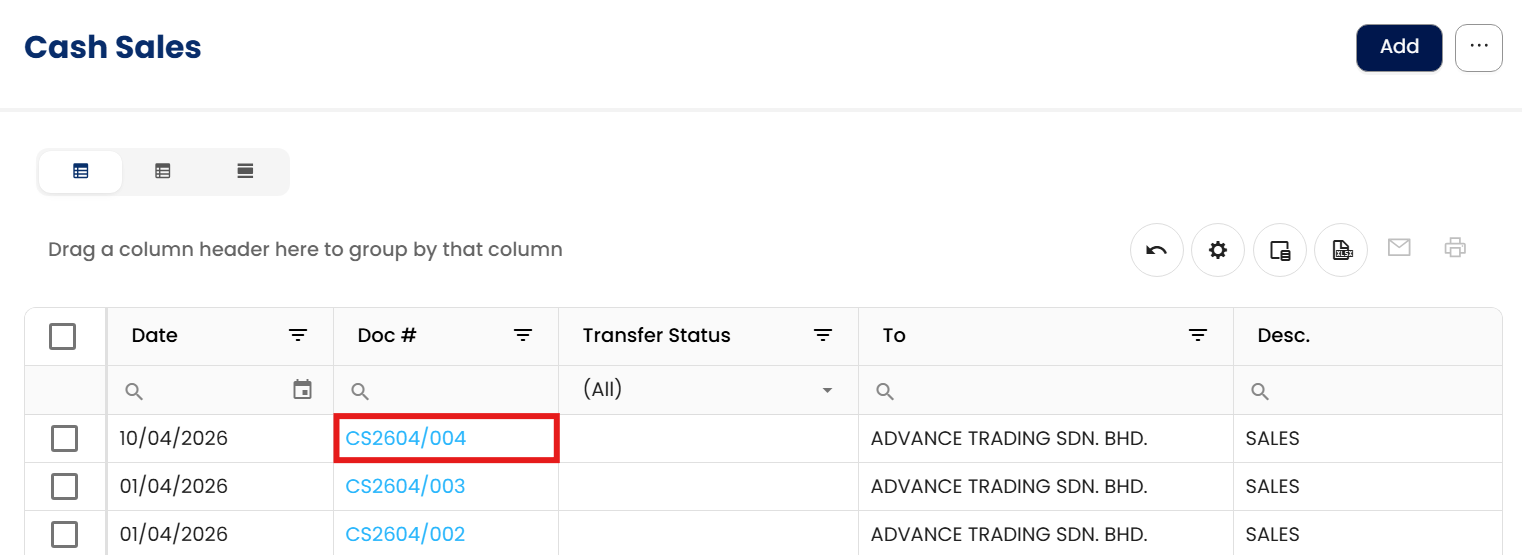
In the Navigation Pane, go to Sales > Cash Sales
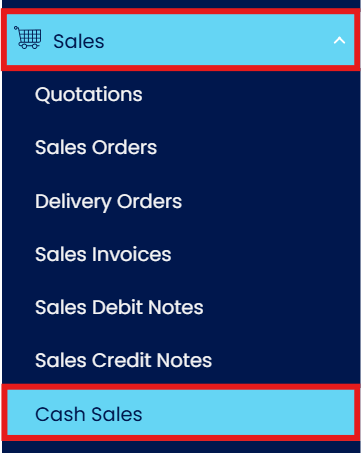
Open for Refund Cash Sale,
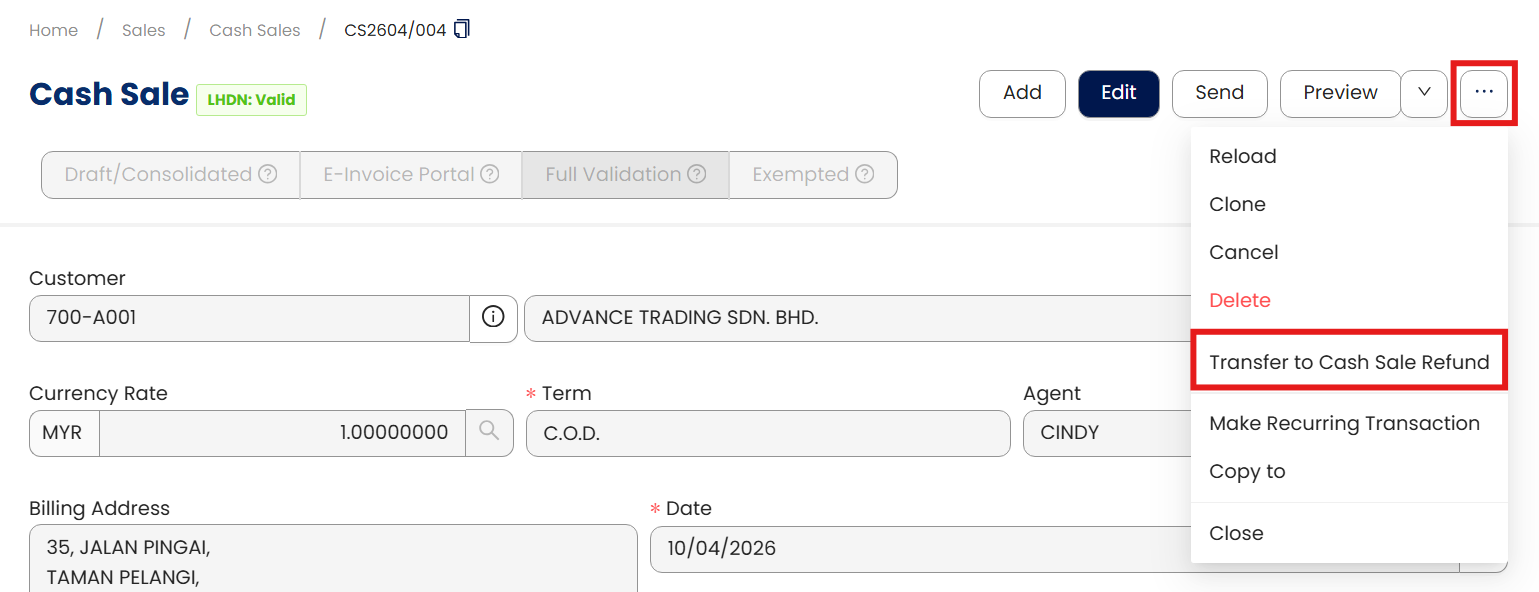
In Cash Sales form > Transfer to Cash Sale Refund
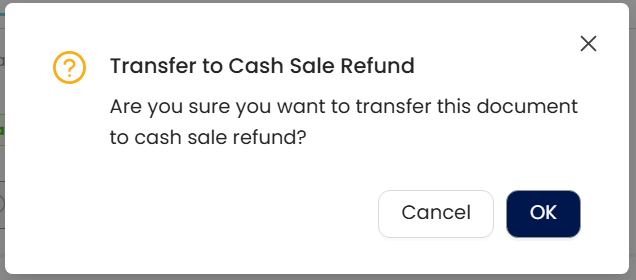
Confirmation will prompt. Click ‘OK’.
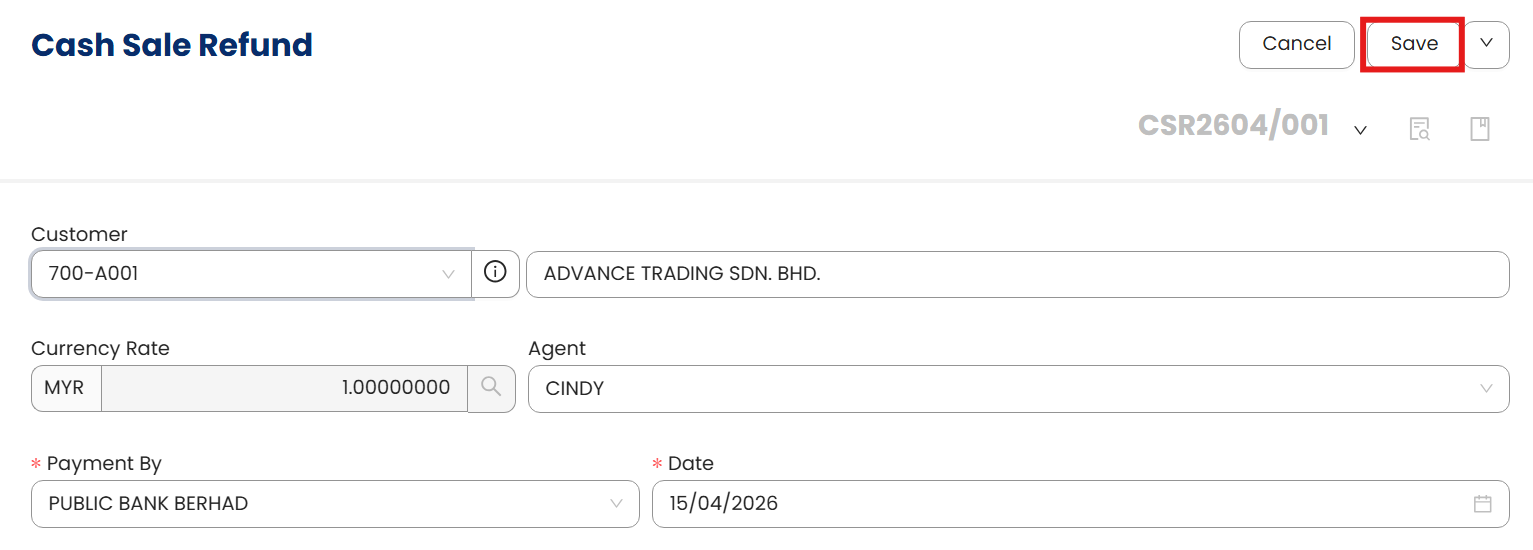
Once transferred and Cash Sale Refund is opened, click ‘Save’.
Application:
Cash Sale will be reversed
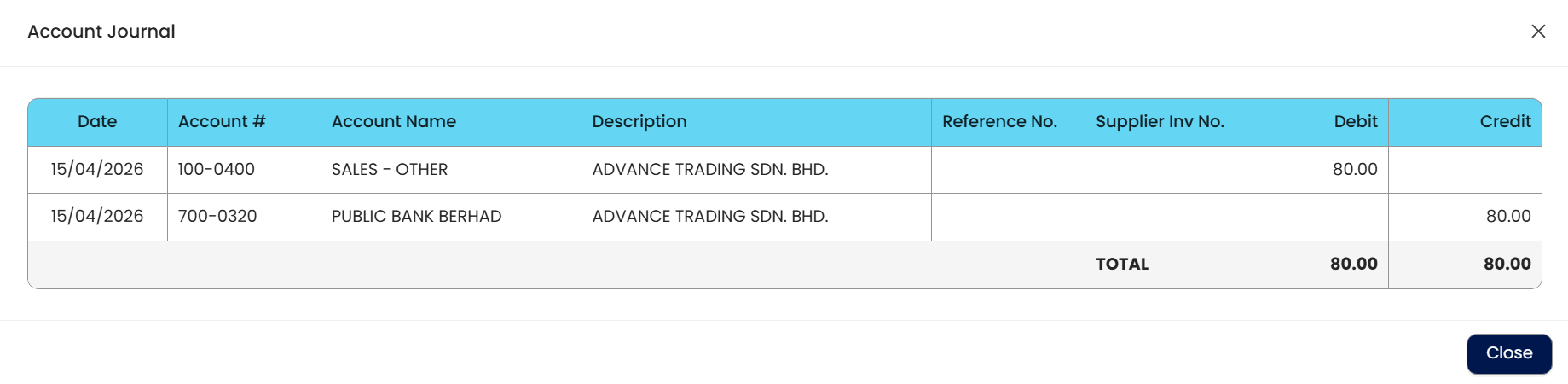
As well as the Stock Inventory

and Cash Sale will now be tagged as ‘Refunded’.
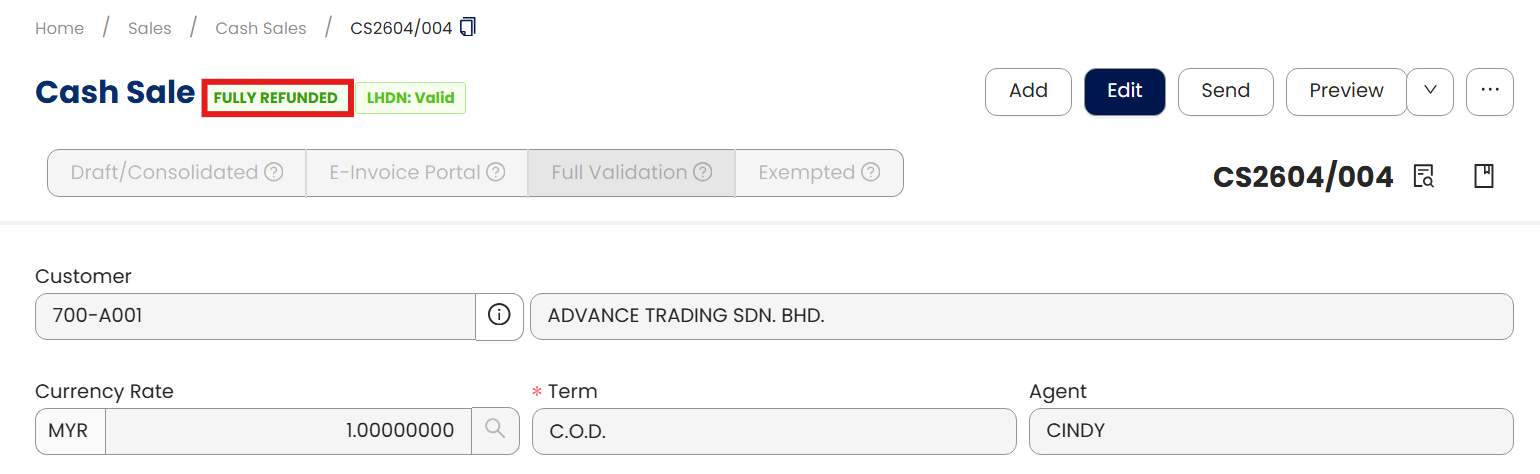
Note: The system also allows users to partially refund cash sales and to refund multiple cash sales transactions.
** Learn more about Azure Cloud
** Learn more about QNE Hybrid Cloud Software
System Scope: QNE AI Cloud Accounting / N3 AI Accounting
Was this article helpful?
That’s Great!
Thank you for your feedback
Sorry! We couldn't be helpful
Thank you for your feedback
Feedback sent
We appreciate your effort and will try to fix the article
